
Ultrawide gaming setup ideas
Six elements that build an immersive single-screen battlestation — one massive curved panel doing the work of two or three monitors, with none of the bezels, the asymmetry, or the visual chaos.
An ultrawide gaming setup chases one thing above all: immersion. A single massive curved panel fills your peripheral vision and does the work of two or three monitors — without the bezels splitting your view, the asymmetric arrangement, or the visual chaos of a multi-monitor wall. The screen wraps toward you, the game stops feeling like something you watch through a window, and the desk stays clean because there's only one screen and one set of cables to manage.
That's the trade this setup makes, and it's a deliberate one. Where a battlestation reaches for screen real estate by adding monitors, an ultrawide reaches for it with a single seamless 21:9 (or wider 32:9) panel. For immersive single-player, sim racing, MMOs, and productivity, it's hard to go back from. It isn't the universal answer — competitive FPS players often still prefer a fast flat 27", and the wide panel asks more of your GPU and your desk — but for the right player, one curved screen beats a wall of them.
An ultrawide is screen real estate without the seams. One curved panel, immersion that fills your vision, a clean desk — the single-screen alternative to a multi-monitor battlestation.
This guide breaks an ultrawide setup into six elements, from the curved core to the cable routing that's easier with one screen. It covers the gear worth buying, the real trade-offs and mistakes (desk depth, GPU load, streaming quirks), and an FAQ on ultrawide versus dual monitors, desk size, and competitive play. For the multi-screen approach, see our battlestation guide — this is the single-screen counterpart.
What actually makes an ultrawide work
An ultrawide rewards a few specific decisions and punishes ignoring them. These five principles separate an immersive single-screen setup from an awkward, underpowered one.
- 01
One seamless screen over many
The whole premise is immersion without seams. A single curved ultrawide fills your peripheral vision and replaces a dual or triple setup for most people — the wider field of view makes open worlds and cockpits feel true-to-life, with no bezels cutting across the action. The curve matters more than people expect: it pulls the edges of a wide panel toward you so they read naturally instead of distorting. This is the core choice that separates an ultrawide from a battlestation — immersion through one wrap-around screen, not screen count.
- 02
The desk has to be deep enough
This is the constraint most people miss. A wide curved panel needs distance to be comfortable — sit too close and the edges feel overwhelming and tire your eyes. Aim for a desk at least 30 inches (76cm) deep, with 39 inches the sweet spot if the room allows, so you can sit far enough back to take in the whole screen with room left for keyboard, mouse, and forearms. The desk also needs a solid footprint: ultrawides span wide and want a stable, sturdy surface (thick wood or MDF) under them. Depth and stability matter more than width.
- 03
Match the GPU to the resolution
An ultrawide is a real GPU load, not a free upgrade. At 3440×1440 you're pushing roughly 1.9× the pixels of 1080p — 1440p ultrawide is almost as demanding as 4K in raw pixel count. Match the card to your refresh target: a mid-tier GPU handles 60Hz cinematic Ultra comfortably, a step up gets you 120-144Hz in most titles, and chasing 240Hz+ needs a top card plus aggressive DLSS/FSR. Variable refresh (G-SYNC or FreeSync) is close to mandatory to kill tearing on fast pans. Confirm your GPU can drive the panel at your target rate before you buy.
- 04
Float it on a heavy-duty arm
The stock stand on a large ultrawide eats desk depth and limits adjustment — exactly the wrong thing when depth is already tight. A monitor arm floats the panel off the surface, reclaims the space beneath, and lets you dial in the height and distance an ultrawide needs. The catch: these panels are big and heavy, so the arm has to be rated for the weight (a cheap arm will sag or tilt under a 34"+ ultrawide and risk a disaster). Buy an arm rated well above your monitor's weight, and set the top third of the screen just below eye level.
- 05
Know the trade-offs going in
An ultrawide is the right call for immersion and productivity, but it's honest to know what you're trading. Some games letterbox cutscenes with black bars or need a community mod for proper 21:9 support (21:9 is far better supported than 32:9). Streaming adds friction — OBS expects 16:9, so you'll crop a region or build separate scenes. And for pure ranked FPS, a fast 27" 16:9 is still simpler and sometimes the only competitively-supported option. None of these are dealbreakers for single-player, sim, and MMO players — just know them before you commit.
Six elements that build an ultrawide setup
Each element supports the single immersive screen — the panel itself, the desk and arm it needs, the clean peripheral zone, and the lighting and cabling that one screen makes easy.
The Curved Ultrawide Core
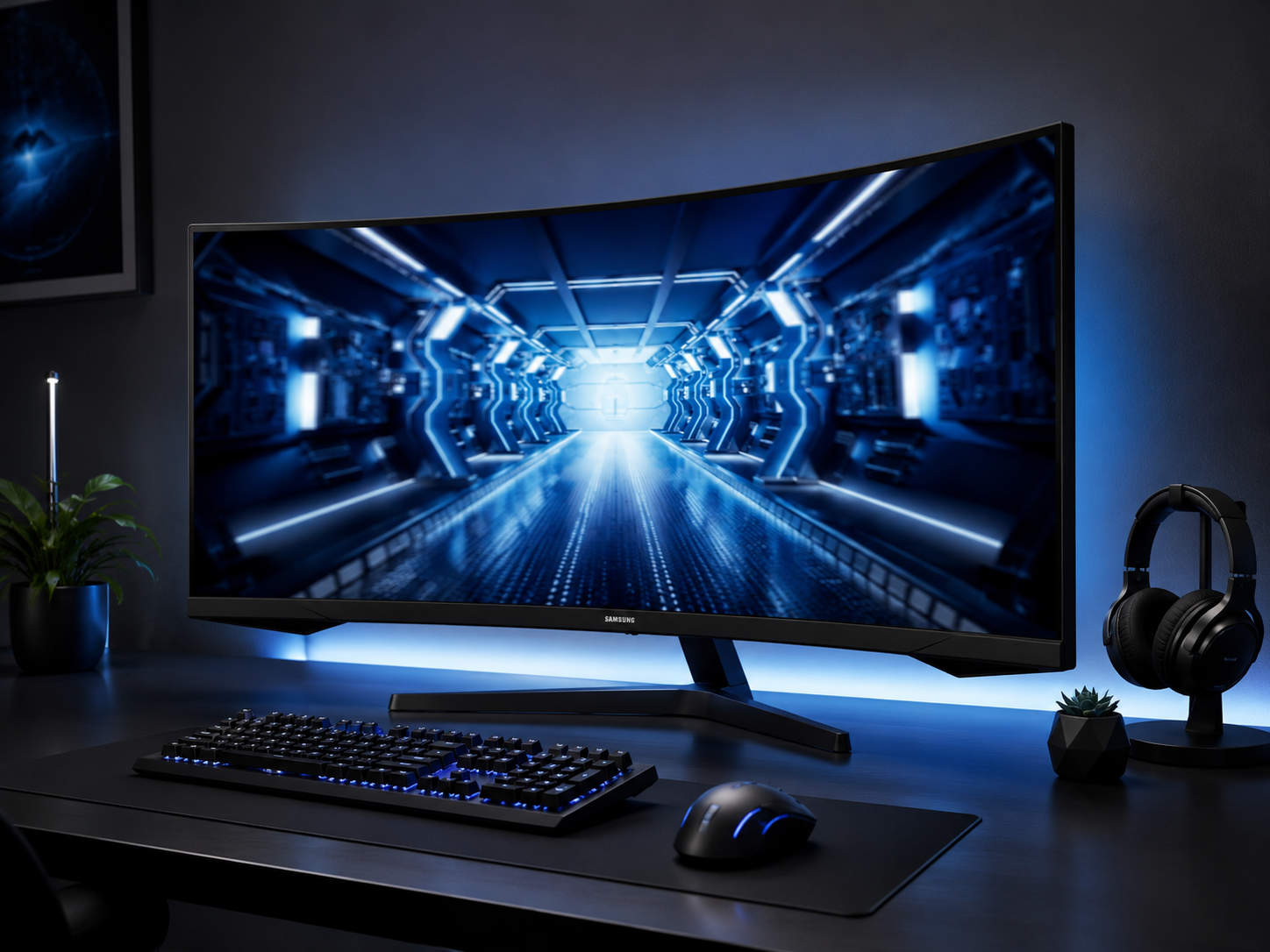
The panel is the entire setup. A single large curved ultrawide — 34" 3440×1440 is the popular sweet spot, 38" for more vertical room, 49" super-ultrawide for maximum immersion — fills your peripheral vision and does the work of multiple monitors with no bezels in the way. The curve (a tighter 1000R wraps more than an older 1800R) pulls the wide edges toward you so they feel natural rather than distorted. Everything else in the build exists to support this one screen. Pick the panel first; design the rest around it.
The Deep-Enough Desk
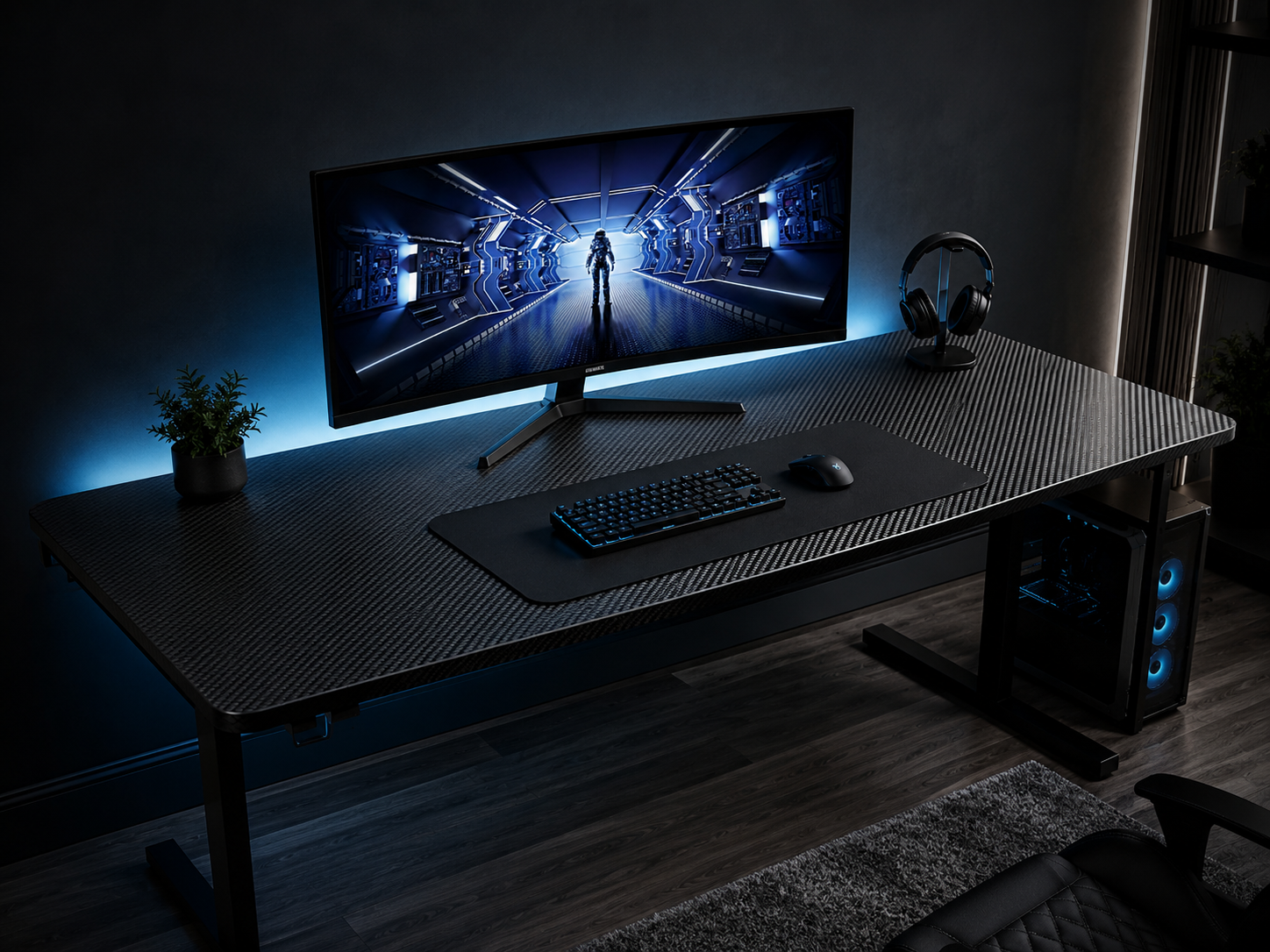
A wide screen needs depth to breathe. Sit too close to an ultrawide and the edges overwhelm your view and tire your eyes; the fix is a desk deep enough to push the panel back. Aim for at least 30 inches of depth, with 39 the ideal if the room allows, leaving comfortable distance plus space for the keyboard and a wrist rest. The desk also needs to be sturdy — ultrawides span wide and want a solid footprint under them, which is why thick wood or MDF tops on a heavy frame are the popular choice. Depth and stability over width.
The Single Monitor Arm
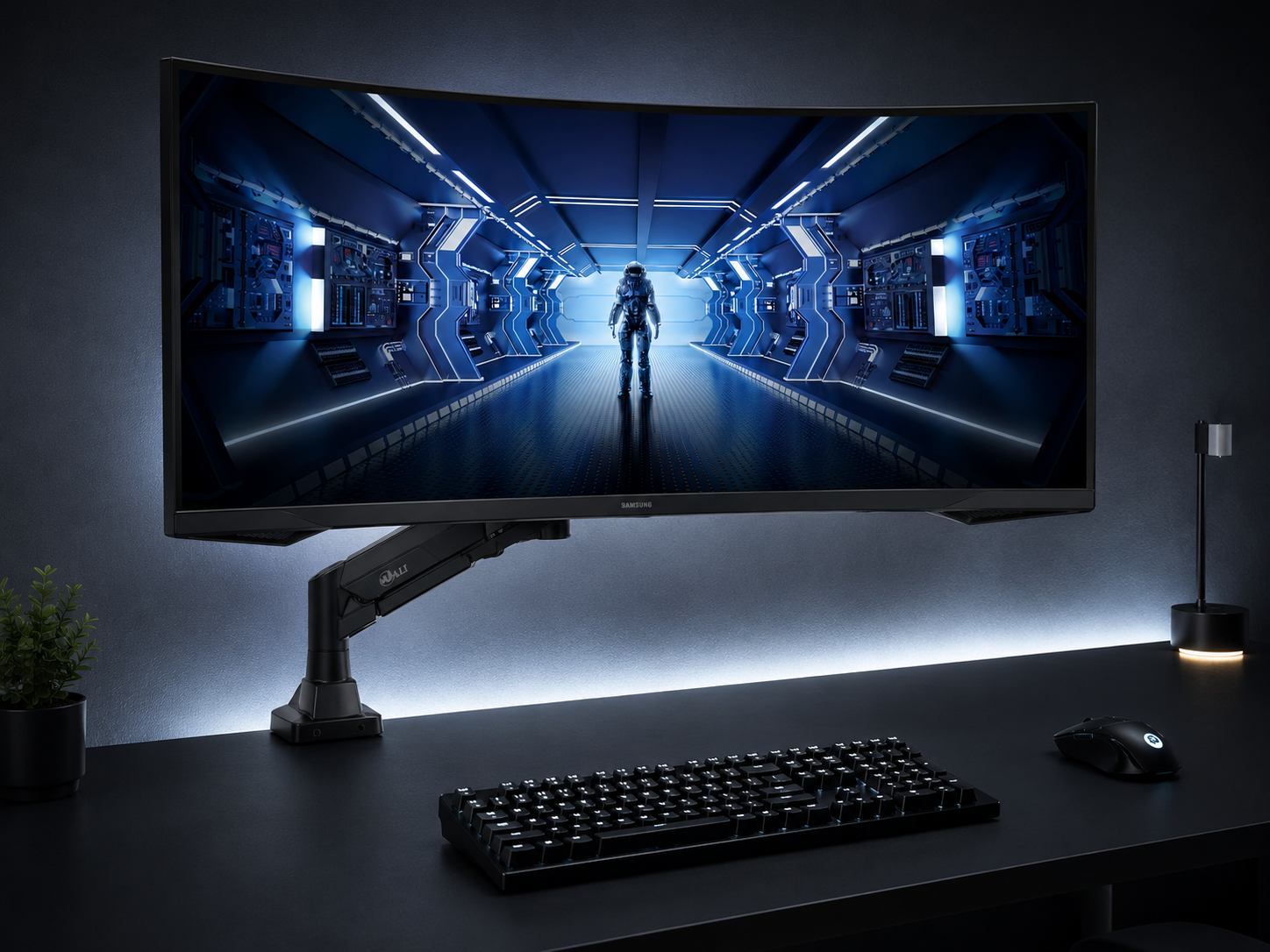
A heavy-duty arm is what makes a deep desk work with a big panel. The stock stand on a large ultrawide eats the very depth you're trying to protect and limits height and tilt; an arm floats the screen off the surface, reclaims the space beneath, and lets you set the exact height and distance the panel needs. The non-negotiable: rate it for the weight. A 34"-plus ultrawide is heavy, and a cheap arm will sag or tilt under it. Buy one rated comfortably above your monitor's weight, route the cable along the arm, and the surface beneath comes back clean.
Immersion-First Peripherals
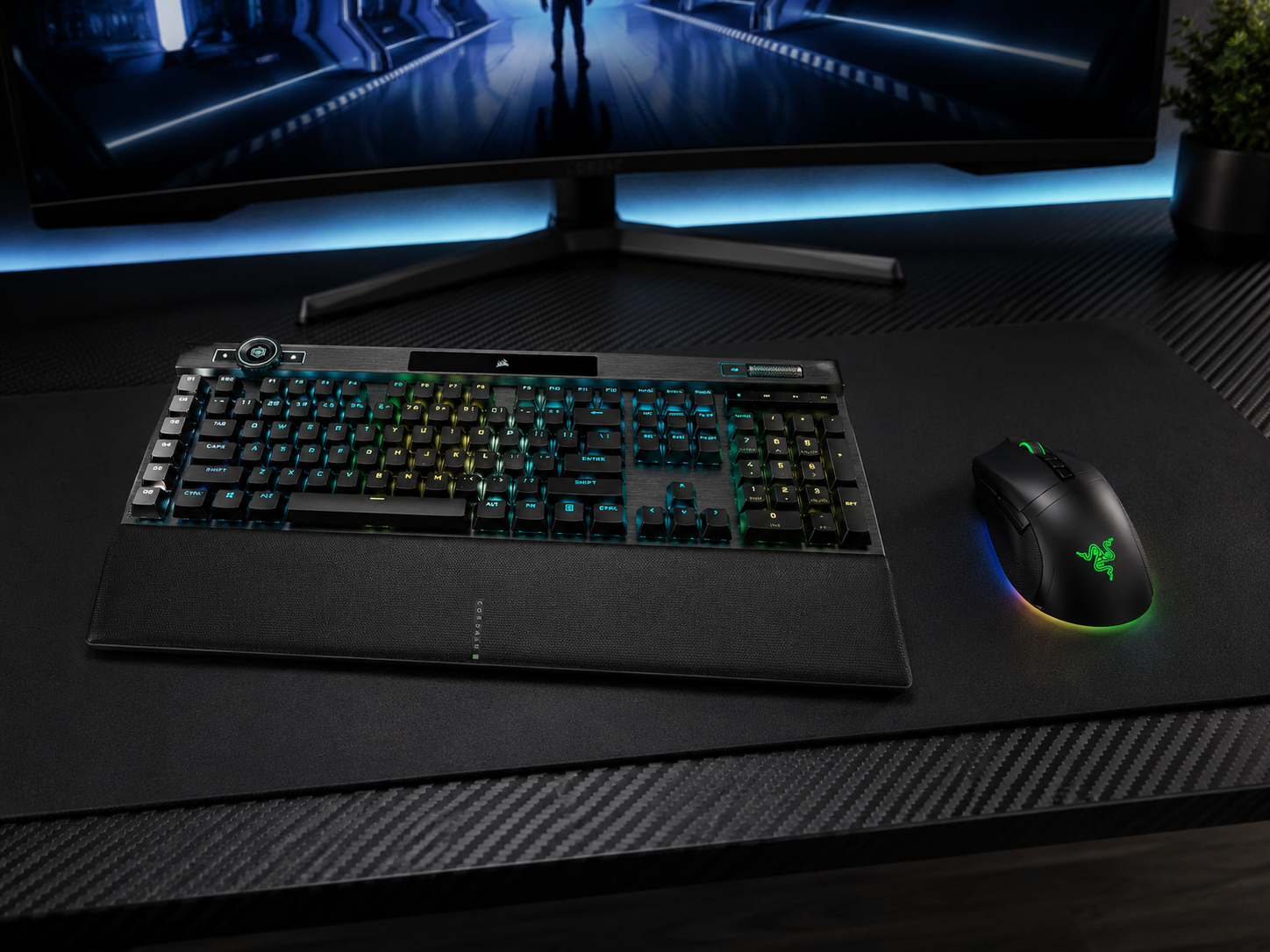
With a single screen as the centerpiece, the peripherals stay clean and let the panel lead. A performance mechanical keyboard and a precise gaming mouse in a restrained dark colorway, on a large desk mat, give you a tidy zone beneath the wide screen with nothing fighting it for attention. Match them to each other and to the desk — dark gear on a dark surface is the safe, cohesive choice. The immersion comes from the screen, so the gear's job is to perform and stay out of the way, not to add its own visual noise to the setup.
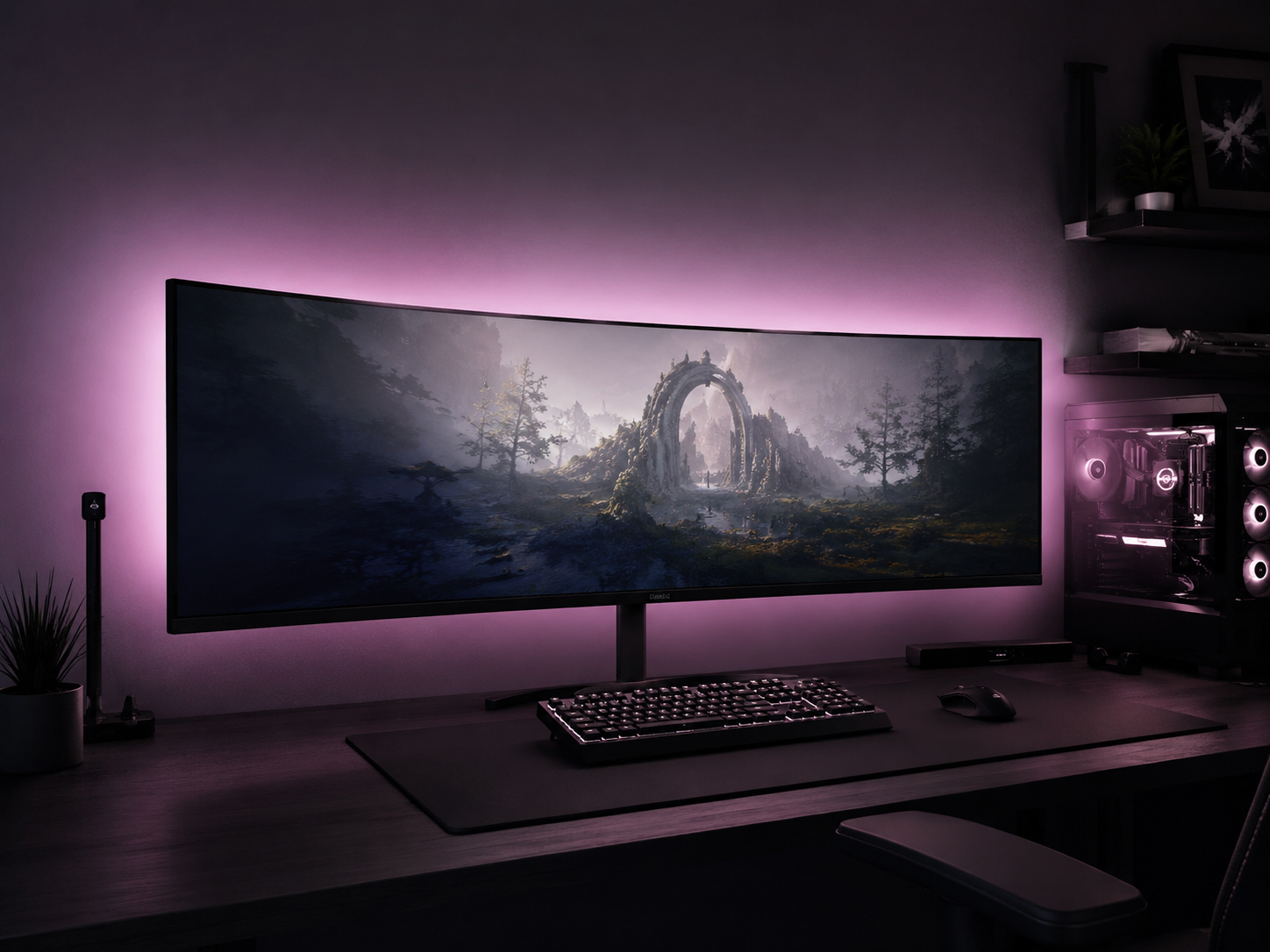
Bias Lighting & Ambiance
A wide panel casts a wide gap of darkness behind it, which is exactly where bias lighting earns its place. A strip mounted along the back of the ultrawide throws a soft, even glow across the full width of the wall — reducing eye strain over long sessions, hiding the gap behind the screen, and deepening the cinematic, wrap-around feel. Keep it restrained: a soft warm white or a single gentle color spread evenly behind the whole panel, never a chaotic clash. On a setup built around immersion, a clean wide bias glow does more for the mood than any amount of saturated RGB.
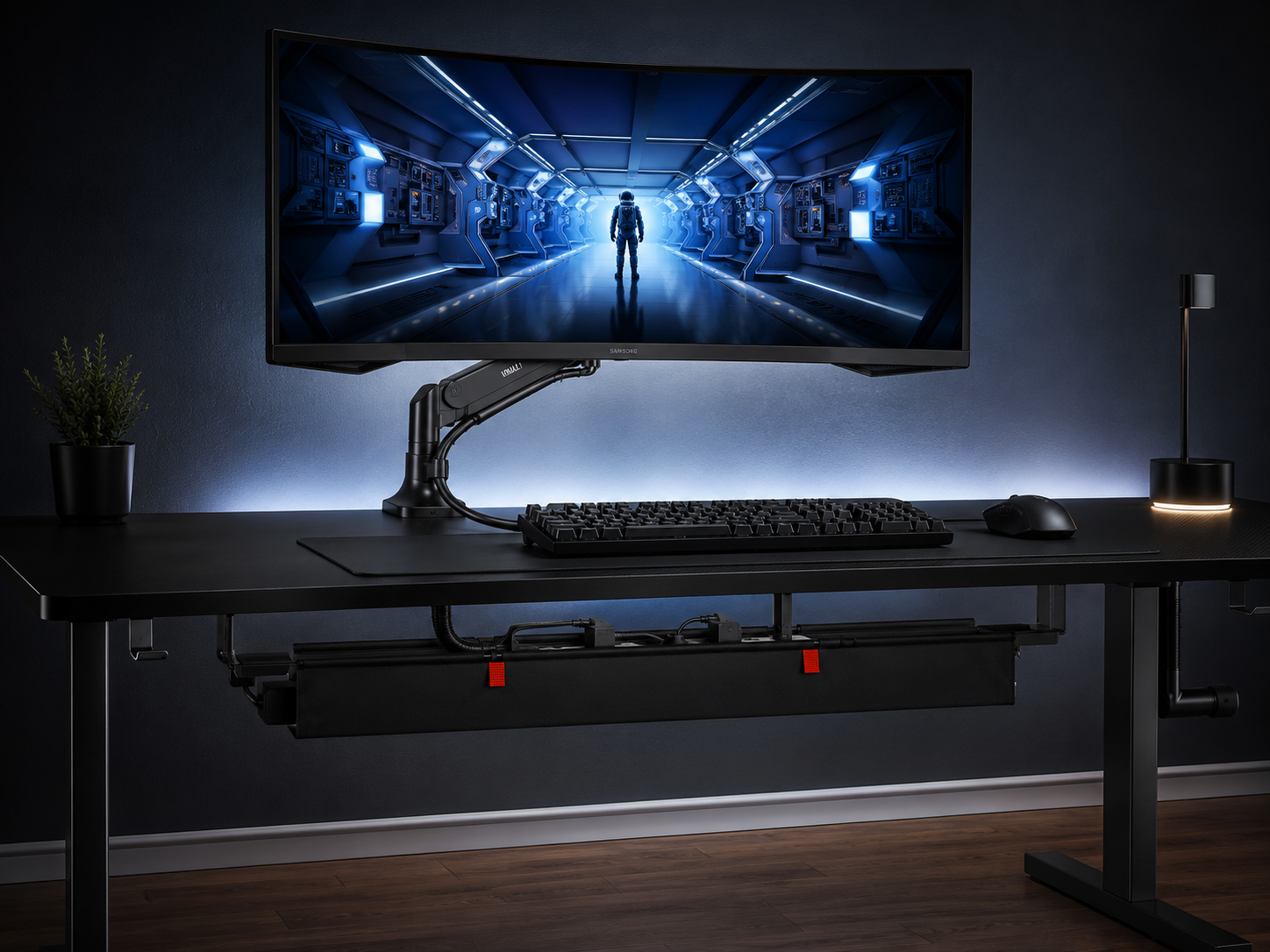
Clean Cable Routing
Here's a quiet advantage of going ultrawide: one screen means dramatically fewer cables than a multi-monitor battlestation. A single panel needs just power and one video cable, so routing the whole setup stays simple — run the few cables along the arm, bundle them in a sleeve, and drop them into a single under-desk tray with one power strip. The front and wall side stay clean with minimal effort. Where a dual or triple setup multiplies video and power runs, the ultrawide keeps the back of the desk tidy almost by default. Fewer screens, fewer cables, less to hide.
Six pieces that build an ultrawide setup
Each piece supports the single immersive screen — the panel, the arm and desk it needs, the clean peripherals, and the bias light that completes it. Chosen for immersion and for the trade-offs that actually matter.
Some links in this section are affiliate links. If you buy through one of them, we may earn a small commission at no extra cost to you. We only recommend gear we'd use ourselves.
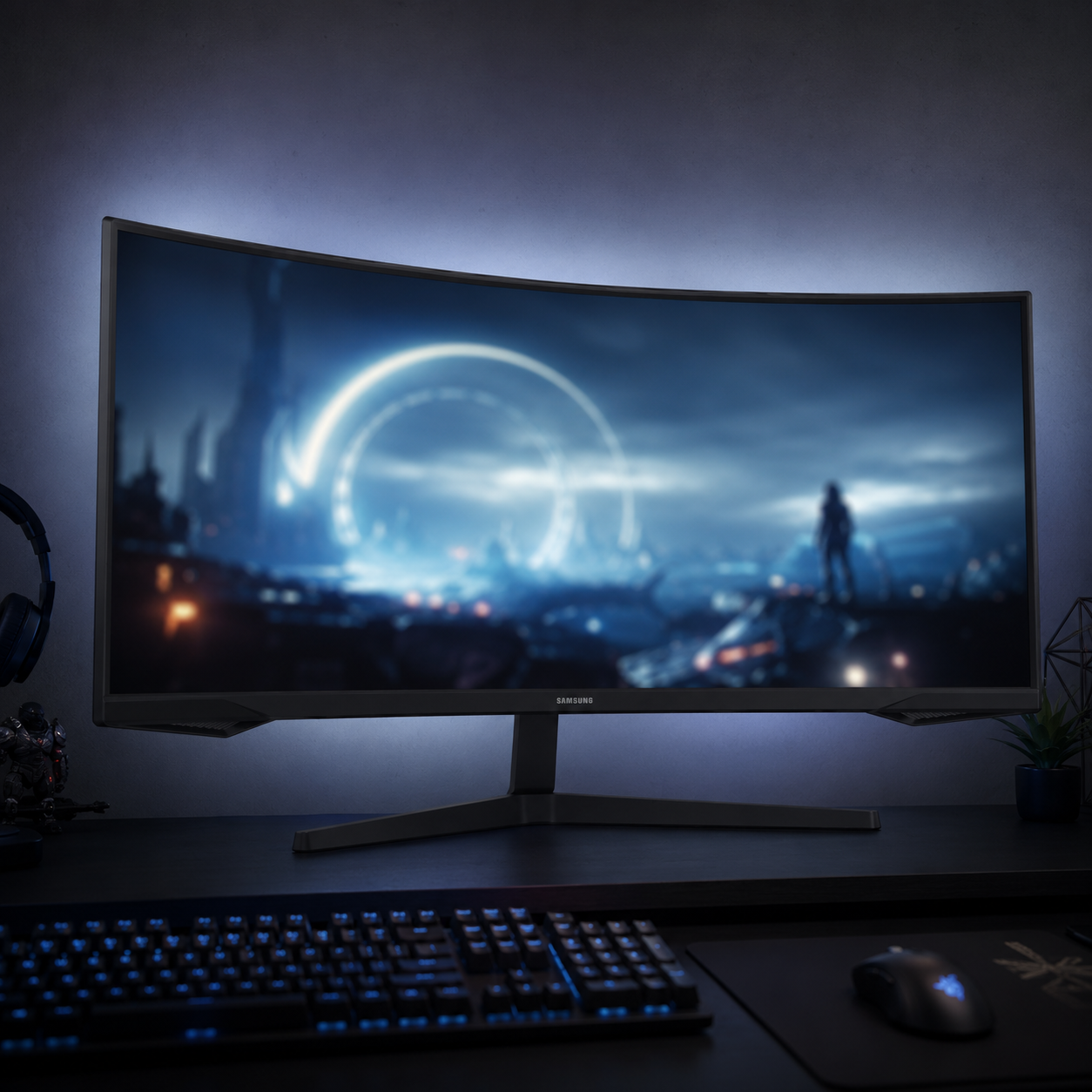
Samsung 34" Odyssey G5 Ultrawide
The accessible way into 21:9 immersion. This 34" curved ultrawide hits the popular 3440×1440 sweet spot with a high refresh rate and FreeSync, and its VA panel is the smart-value play — deep contrast, strong brightness, and none of the burn-in worry or premium of an OLED. In a room with daylight, a good VA panel like this can actually look better than OLED in practice. It's the entry point that delivers the core ultrawide experience — the wide, wrap-around screen filling your view — without the four-figure price of the high-end OLED panels.
- 34" 3440×1440 curved 21:9, high refresh
- VA panel: deep contrast, no burn-in worry
- FreeSync for tear-free fast motion
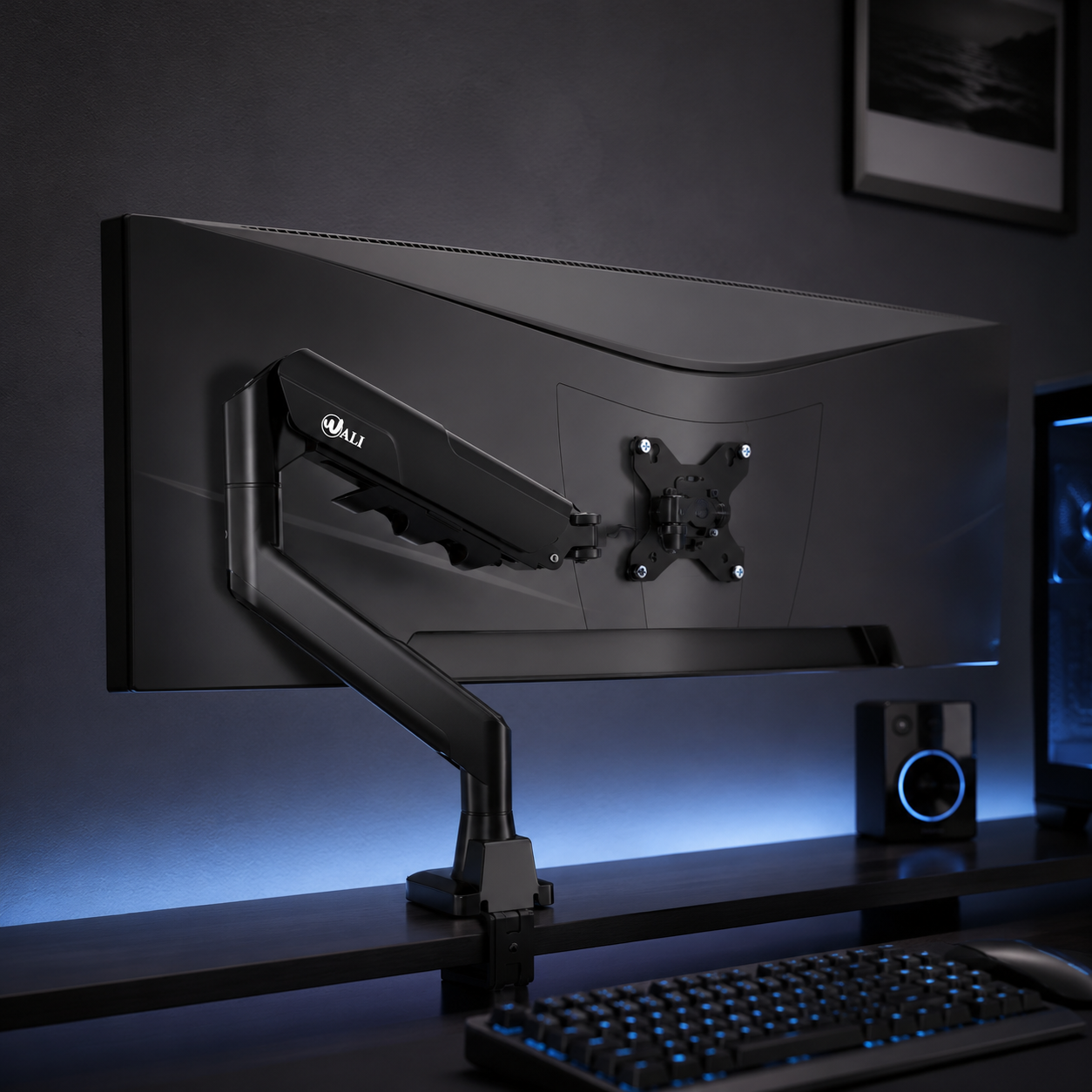
WALI Heavy-Duty Ultrawide Monitor Arm
The arm built for the weight an ultrawide actually carries. Rated for flat and curved screens from 17 right up to 49 inches, this heavy-duty single arm has the load capacity a big panel demands — the exact spec where cheap arms fail, sagging or tilting under a large ultrawide. It floats the panel off the desk to reclaim the depth an ultrawide needs, sets height and tilt precisely so you can put the top third just below eye level, and routes the cable along its frame. For a setup where the screen is everything, this is the mount that holds it safely and frees the surface beneath.
- Rated for 17-49" flat and curved ultrawides
- Heavy-duty load capacity for big panels
- Frees desk depth, precise height and tilt
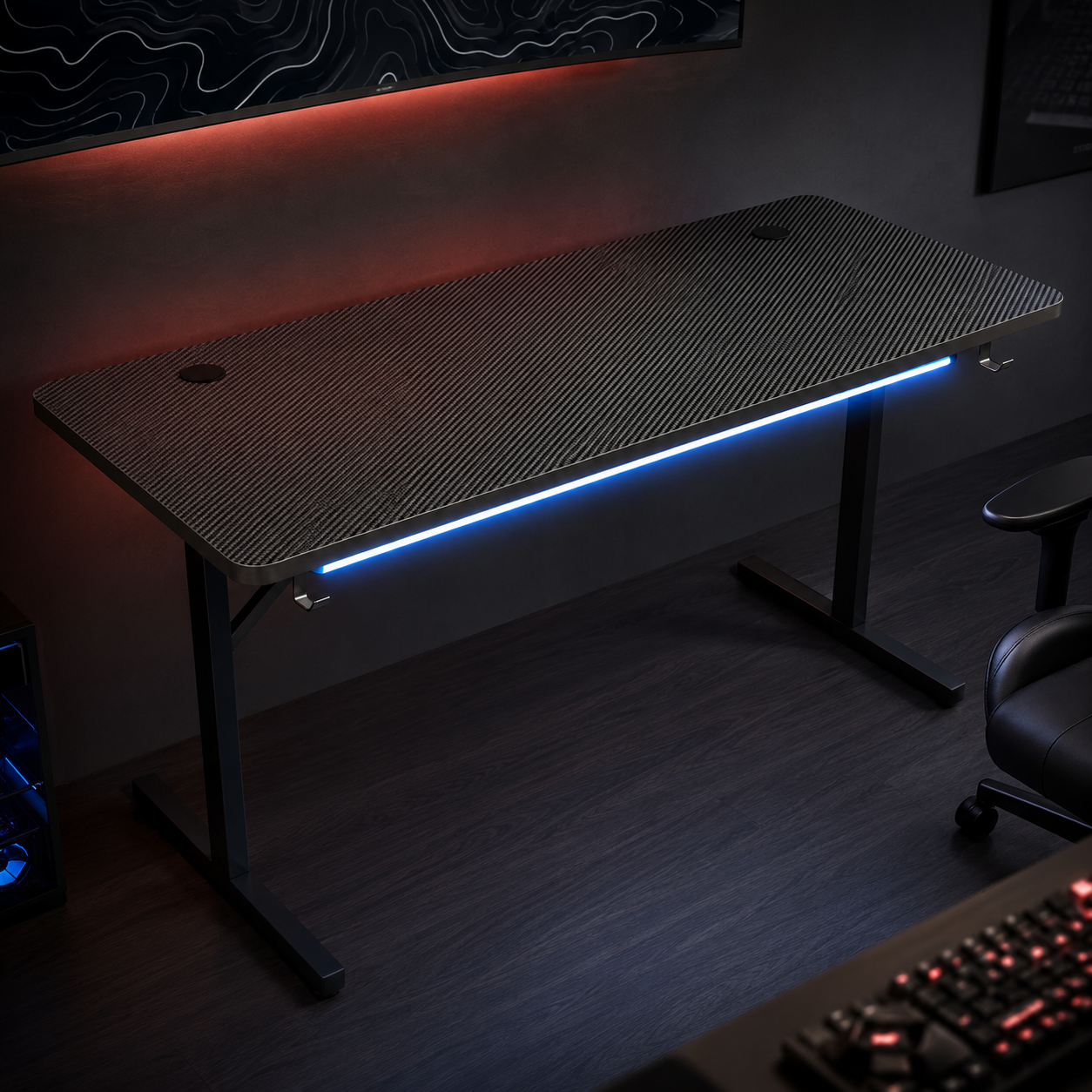
GTPLAYER 55" Gaming Desk
A wide, affordable surface to build the setup on. At 55" across, this desk gives a 34" ultrawide plenty of horizontal room, with a headphone hook and integrated LED lights that suit the cinematic mood. One honest note for ultrawide buyers: depth matters more than width here, so confirm the desk gives you at least 30 inches of depth (or plan to mount the panel on an arm pushed to the back edge to maximize viewing distance). For the price, it's a solid foundation — pair it with the heavy-duty arm above to float the screen back and reclaim the surface.
- Wide 55" surface, affordable foundation
- Headphone hook and integrated LED lighting
- Pair with an arm to maximize viewing distance
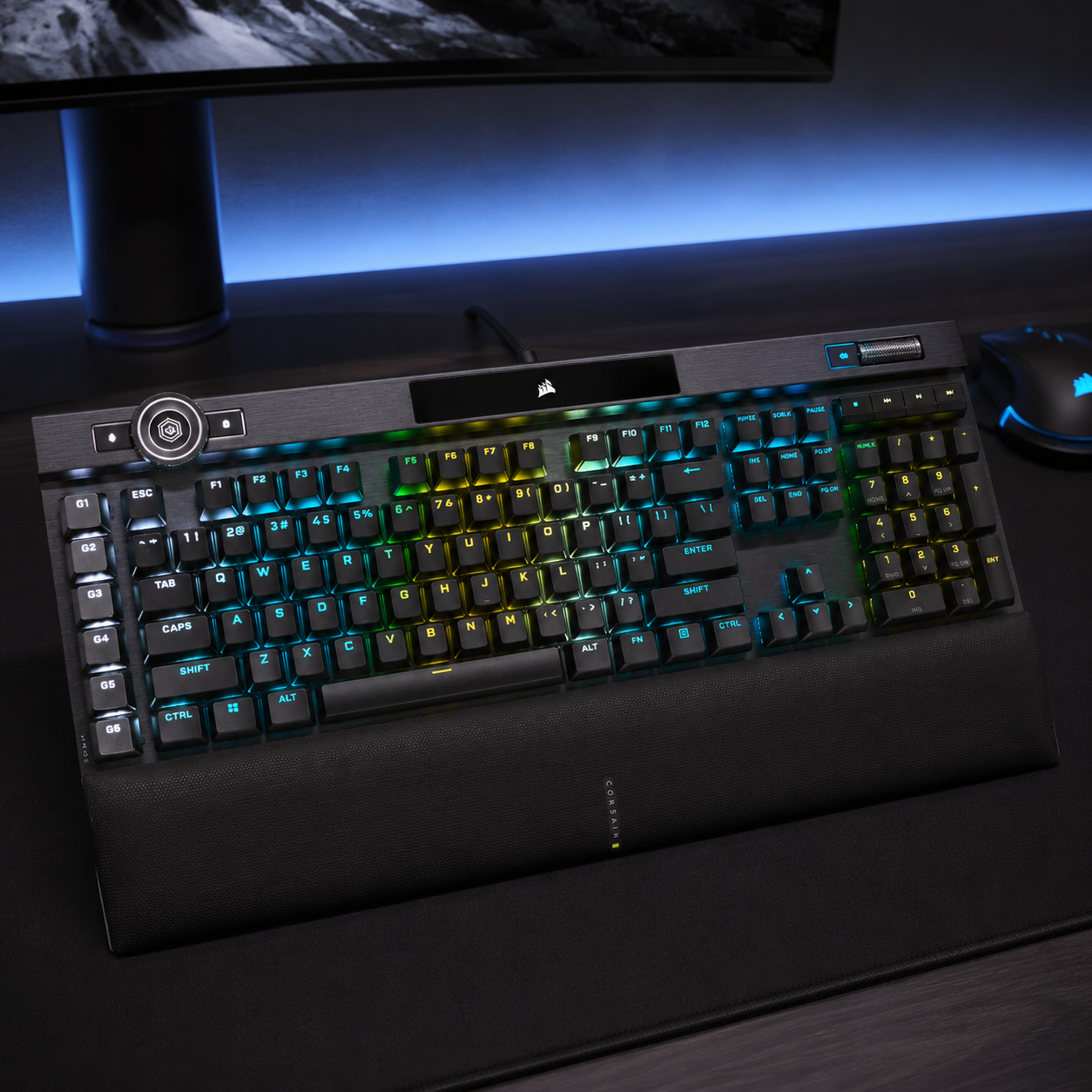
Corsair K100 RGB Mechanical Keyboard
A flagship board to match a flagship screen. The K100 pairs fast optical-mechanical switches with a premium build and per-key RGB you can keep restrained — a single static color or slow scheme that complements the immersive setup rather than competing with the panel. Its control wheel and macro keys are genuinely useful in the sim, MMO, and productivity workflows ultrawides excel at. In a setup where the screen is the centerpiece, a clean, high-performance keyboard like this sits quietly beneath it and delivers the input precision long immersive sessions demand.
- Fast optical-mechanical switches, premium build
- Per-key RGB, easy to keep restrained
- Control wheel and macros for sim and MMO
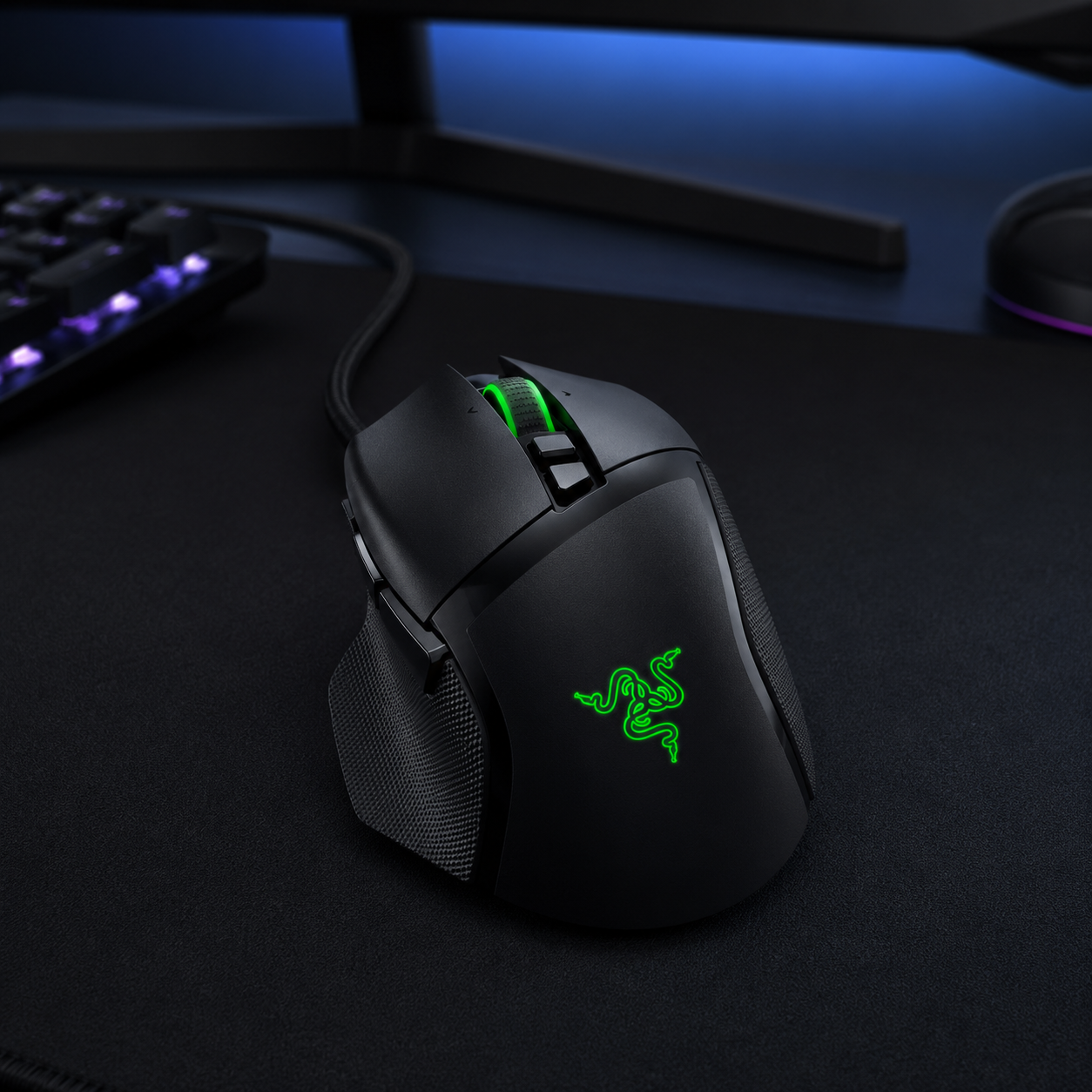
Razer Basilisk V3 Gaming Mouse
A precise, comfortable mouse for the long sessions an ultrawide invites. The Basilisk V3 brings a high-precision sensor and customizable buttons in an ergonomic shape that holds up over hours of immersive single-player or sim racing. Its subtle Chroma underglow can lock to the same restrained scheme as the rest of the setup so nothing fights the screen. Paired with the K100, it makes a cohesive dark peripheral zone beneath the wide panel — performance gear that stays out of the way and lets the immersion come from where it should: the screen.
- High-precision sensor, customizable buttons
- Comfortable ergonomic shape for long sessions
- Subtle Chroma underglow, easy to coordinate
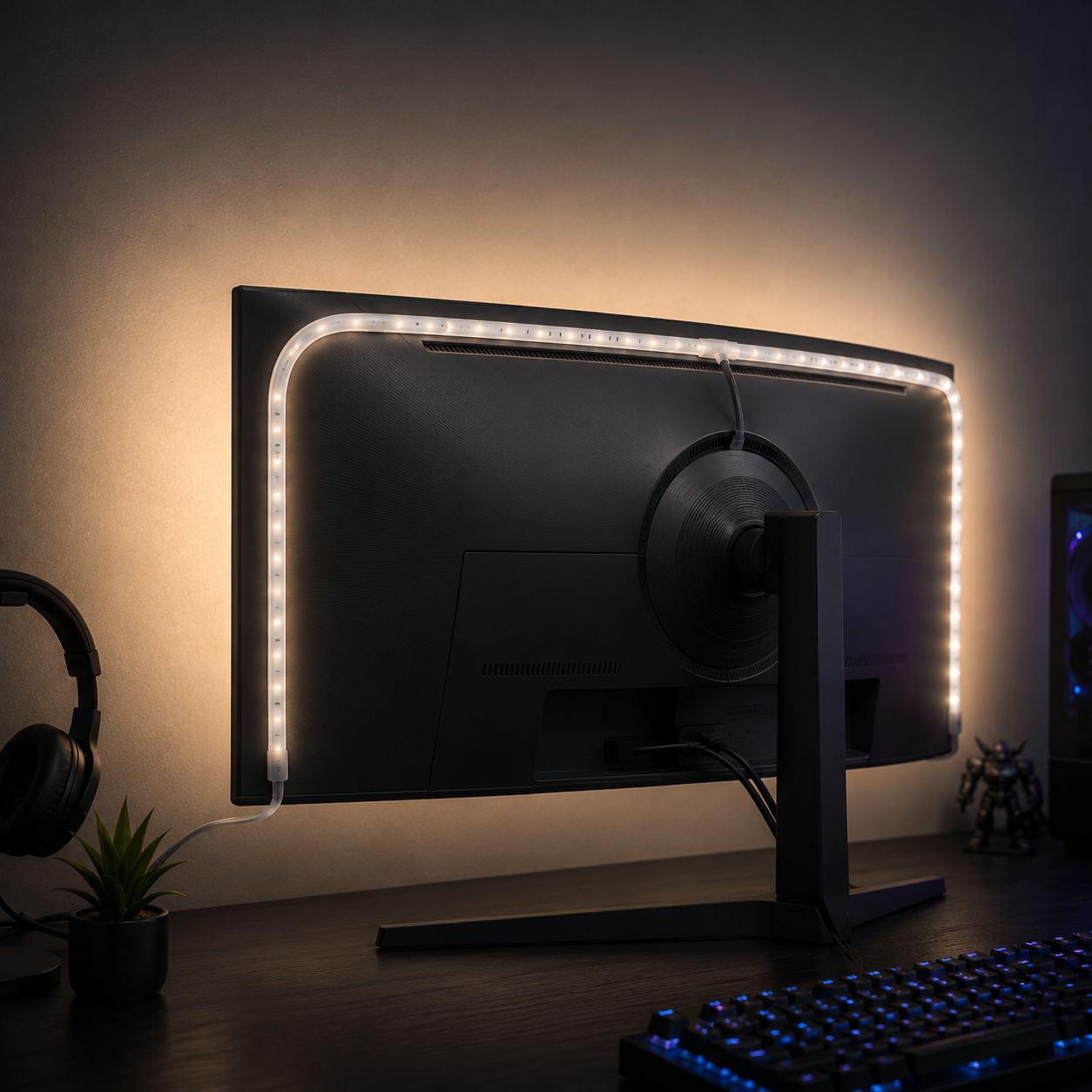
Philips Hue 10ft RGBWW Lightstrip
The bias light that spans a wide panel properly. At 10 feet, this Hue lightstrip has the length to run the full back edge of even a 34-49" ultrawide, casting an even glow across the whole wall behind it. Crucially it does warm whites as well as color (RGBWW), so you can run a soft warm-white bias for eye comfort during long sessions rather than a saturated color — exactly the restrained ambiance an immersive setup wants. The Hue ecosystem lets you set scenes and dim it on a schedule. The single best ambiance upgrade for the wide gap behind an ultrawide.
- 10ft length spans a full ultrawide back edge
- RGBWW — warm whites, not just color
- Smart scenes and scheduling via Hue
Four ways ultrawide setups go wrong
An ultrawide is unforgiving of a few specific oversights. Avoid these and the immersive payoff is worth every bit of the trade.
- 01
Putting it on too shallow a desk
The most common ultrawide mistake is mounting a wide panel on a standard, shallow desk and sitting too close. The edges crowd your peripheral vision, your eyes work overtime tracking across the screen, and the immersion turns into fatigue. An ultrawide needs distance — at least 30 inches of desk depth, ideally closer to 39 — to be comfortable. If your desk is shallow, push the panel to the back edge on an arm to buy distance, or fix the desk first. Don't spend on a beautiful wide screen and then sit a foot away from it.
- 02
Under-powering the GPU
An ultrawide is not a free resolution bump. At 3440×1440 you're driving nearly twice the pixels of 1080p, close to a 4K load, and pairing a big immersive panel with a GPU that can't feed it means low framerates that wreck the very smoothness you bought the screen for. Match the card to your refresh target before you buy the monitor, lean on DLSS or FSR at Quality to claw back frames, and enable variable refresh to kill tearing. The screen is only as immersive as the framerate behind it — budget for both, not just the panel.
- 03
Trusting a cheap monitor arm
A 34"-plus ultrawide is large and heavy, and a budget arm not rated for the weight will sag, drift, or tilt under it — at worst dropping a several-hundred-dollar panel. People reach for a generic arm to save twenty dollars and risk the most expensive thing on the desk. Buy an arm explicitly rated for ultrawide weights, comfortably above your monitor's actual mass. The arm is cheap insurance for an expensive screen, and the right one also gives you the smooth height and depth adjustment a wide panel needs. Don't cheap out on the one thing holding the screen up.
- 04
Ignoring the game and streaming trade-offs
Going in expecting flawless 21:9 everywhere leads to frustration. Some games letterbox cutscenes with black bars, a few competitive titles restrict the wider field of view or don't support it, and older games may need a community mod for proper ultrawide. Streaming adds friction too — OBS expects 16:9, so you'll crop or build scenes around it. None of this is a dealbreaker for single-player, sim, and MMO play, where ultrawide shines, but it's worth knowing before you buy. If pure ranked FPS is your main game, a fast 27" 16:9 may serve you better.
Ultrawide gaming questions, answered
Single ultrawide or dual monitors for gaming?
A single ultrawide wins for immersive single-player, sim racing, MMOs, and a cleaner-looking desk — one seamless screen, no bezels, fewer cables. Dual monitors win when you need a dedicated second screen always visible: Discord, chat, stats, or OBS while streaming, without alt-tabbing. An ultrawide can replace a dual setup for most people, and many who switch don't go back. But if a permanently-visible second screen is core to how you play or stream, dual monitors stay more flexible. Match it to whether immersion or a dedicated side screen matters more to you.
Is an ultrawide worth it for competitive shooters?
For pure ranked play in titles like Valorant or CS2, many competitive players still prefer a fast 24-27" 240Hz+ 16:9 monitor — some competitive titles restrict the wider field of view or don't fully support 21:9, and a flat high-refresh panel keeps things simple. For casual FPS and variety gaming, an ultrawide is a fantastic upgrade with a genuinely wider field of view. The honest answer: decide whether ranked performance or overall immersion is your priority. If it's pure competitive FPS, stick with a fast 16:9; for everything else, ultrawide.
How deep does my desk need to be for an ultrawide?
At least 30 inches (76cm) deep, with around 39 inches the sweet spot if your room allows. A wide curved panel needs distance to be comfortable — sit too close and the edges feel overwhelming and tire your eyes. Depth matters more than width here. For a large 49" super-ultrawide, prefer 70-75 inches wide and 30-35 deep. If your current desk is shallow, mounting the panel on an arm pushed to the back edge buys you some viewing distance, but a genuinely deep, sturdy surface is the real fix.
What GPU do I need for ultrawide gaming?
More than you'd think — 3440×1440 pushes roughly 1.9× the pixels of 1080p, almost a 4K load. Match the card to your refresh target: a mid-tier GPU handles 60Hz cinematic Ultra, a step up reaches 120-144Hz in most titles, and 240Hz+ needs a top-end card plus aggressive DLSS or FSR. Variable refresh (G-SYNC or FreeSync) is close to mandatory to eliminate tearing on fast camera pans. Confirm your GPU can drive the panel at your target refresh rate before buying the monitor — an underfed ultrawide undercuts the smoothness you bought it for.
Does an ultrawide make text blurry or hard to read?
No — text clarity depends on pixel density and scaling, not the aspect ratio. A 34" 3440×1440 panel has roughly the same pixel density as a 27" 1440p monitor, so text looks comparably sharp at a normal arm's-length distance. Proper OS scaling, ClearType tuning on Windows, and the newer subpixel layouts on current QD-OLED panels have largely solved the text-fringing issues earlier ultrawide generations had. If anything, the extra horizontal space makes side-by-side documents and code far more readable than a cramped single 16:9.
What ultrawide size is best — 34, 38, or 49 inch?
The 34" 3440×1440 (21:9) is the sweet spot for most people — immersive, well-supported in games, and the most affordable tier. The 38" 3840×1600 adds useful vertical room and is excellent for productivity. The 49" 5120×1440 (32:9) super-ultrawide is a big investment that shines for sim racing and heavy multitasking, but it demands a serious GPU and a large, deep desk, and 32:9 has weaker game support than 21:9. For most gamers, start at 34" 21:9 unless sim racing or deep multitasking is specifically your thing.
The best new setups, in your inbox
One thoughtful email. No spam, no fluff.