
Streaming setup ideas
Six elements that build a setup for going live — the camera, the flattering light, broadcast audio, and the workflow. Every choice made for what your audience sees and hears, not just how it feels to sit at.
A streaming setup is the only gaming setup built for two people: you, and everyone watching. Every other desk in this hub is optimized for how it feels to sit at. A streaming setup is optimized for what shows up on the broadcast — how you look on camera, how you sound through the mic, what's behind you in frame, and how smoothly you can run a live show solo while you play. The gear that makes a stream feel professional is mostly gear your audience experiences, not you.
That's the shift in thinking that trips up new streamers. They spend on a faster GPU when the thing holding their stream back is muddy audio, a face lost in shadow, or a cluttered wall behind them. Viewers forgive average gameplay; they click away from bad audio and dark, flat video in seconds. Get the camera, the lighting, and the mic right — the three things the audience actually judges — and a modest setup looks and sounds more professional than an expensive one that ignored them. This guide is about building for the shot.
Your viewers never see your framerate. They see your face, hear your voice, and read your background. A streaming setup earns its budget on the camera, the light, and the mic — the three things the audience actually judges.
This guide breaks a streaming setup into six elements, from the camera framing to the stream-control workflow. It covers the gear worth buying, the mistakes that make a stream look and sound amateur, and an FAQ on one PC versus two, webcam versus camera, and where to spend first. For the screen arrangement underneath it all, see our dual monitor guide; if you stream from console, the console setup guide.
What a streaming setup actually solves for
A streaming setup optimizes for the audience, not just the player. These five principles put the budget and effort where viewers actually notice.
- 01
Audio is half the stream — maybe more
Viewers tolerate average video far longer than they tolerate bad audio. A muddy, echoey, or hissy mic is the fastest way to lose a new viewer, while clear, warm audio keeps people watching even when the gameplay lulls. This is why audio should get the first serious chunk of a streaming budget, ahead of a fancier camera or more RGB. A good microphone on a boom arm, positioned close and angled right, plus a little room treatment to kill echo, does more for how professional a stream feels than almost anything else you can buy.
- 02
Light the person, not the screen
The single biggest difference between an amateur stream and a professional-looking one is lighting on the face. A dark face lit only by monitor glow reads as low-effort instantly; a soft, flattering key light transforms the same camera and the same room. Position the key light off-axis — slightly above and to one side of your face, not flat-on — so it creates gentle, dimensional shadows rather than a washed-out mugshot. Add a softer fill on the opposite side to lift the shadows. This is lighting for camera, aimed at you, and it's completely separate from any bias lighting on your screen.
- 03
The background is part of the shot
Whatever is behind you is on screen for your entire broadcast, so treat it as set design, not an afterthought. A cluttered, flat wall reads as amateur; a styled background with a little depth — a shelf with plants and a few decor pieces, a subtle accent light adding color — reads as intentional and gives your channel a recognizable identity. Create distance between you and the background so it doesn't look flat, and keep it tidy and on-brand. You don't need a huge space; you need a well-composed few feet behind your chair that looks deliberate on camera.
- 04
Frame the camera at eye level
Camera placement quietly makes or breaks how you connect with viewers. Mount it at or just above eye level, pointed straight at you — a camera looking up from the desk gives an unflattering angle, and one off to the side breaks the sense of eye contact that pulls viewers in. Sit an arm's length or so back so you're framed from roughly mid-chest up, not filling the whole frame or lost in a wide shot. Whether it's a webcam clipped to the monitor or a mirrorless camera on a mount, eye-level and centered is the framing that makes a stream feel like a conversation.
- 05
Build a workflow you can run solo
A streamer is a one-person production — playing the game and running the broadcast at the same time. The setup has to make that manageable: a second screen for OBS, chat, and alerts so you can watch the stream without leaving the game, and a control surface within reach to switch scenes, drop alerts, and mute the mic without alt-tabbing mid-match. The goal is running a smooth show without the production pulling you out of the gameplay. Get the workflow right and you can focus on playing and talking — the two things viewers actually came for.
Six elements that build a streaming setup
Each element handles a piece of the broadcast — the camera, the light on you, the audio, the screens, the background, and the live-control workflow. Get all six right and a modest setup looks and sounds professional.
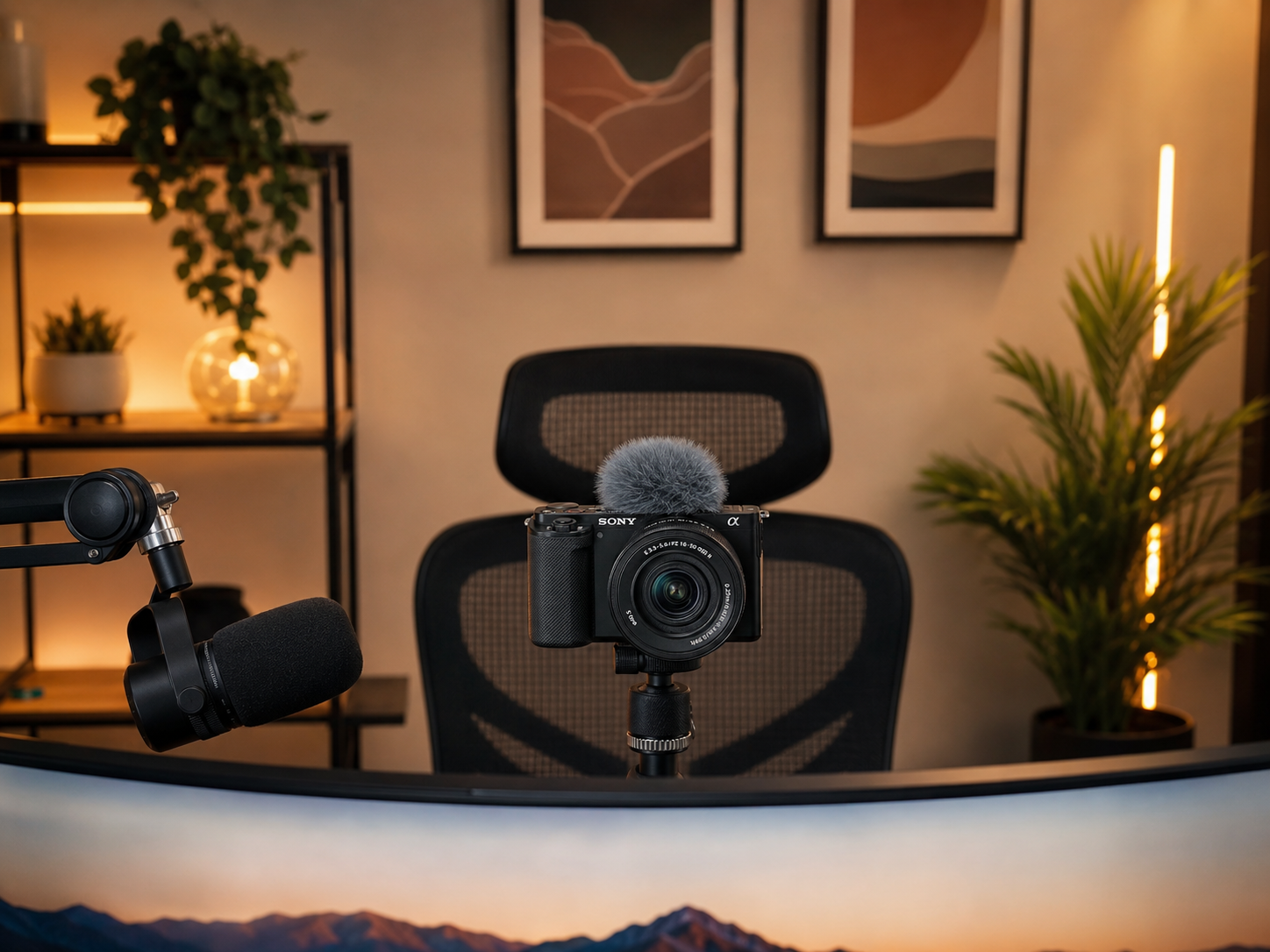
The Camera & Framing
The camera is your face to the audience, so placement matters as much as the camera itself. Mount it at or just above eye level, pointed straight at you, and sit far enough back to be framed from mid-chest up. That eye-level, centered framing creates the sense of eye contact that makes a stream feel like a conversation rather than a broadcast. A clip-on webcam works to start; a mirrorless camera with a real lens gives that soft-background, professional look as you grow. Either way, get the height and framing right first — it costs nothing and does more than a pricier camera mounted badly.
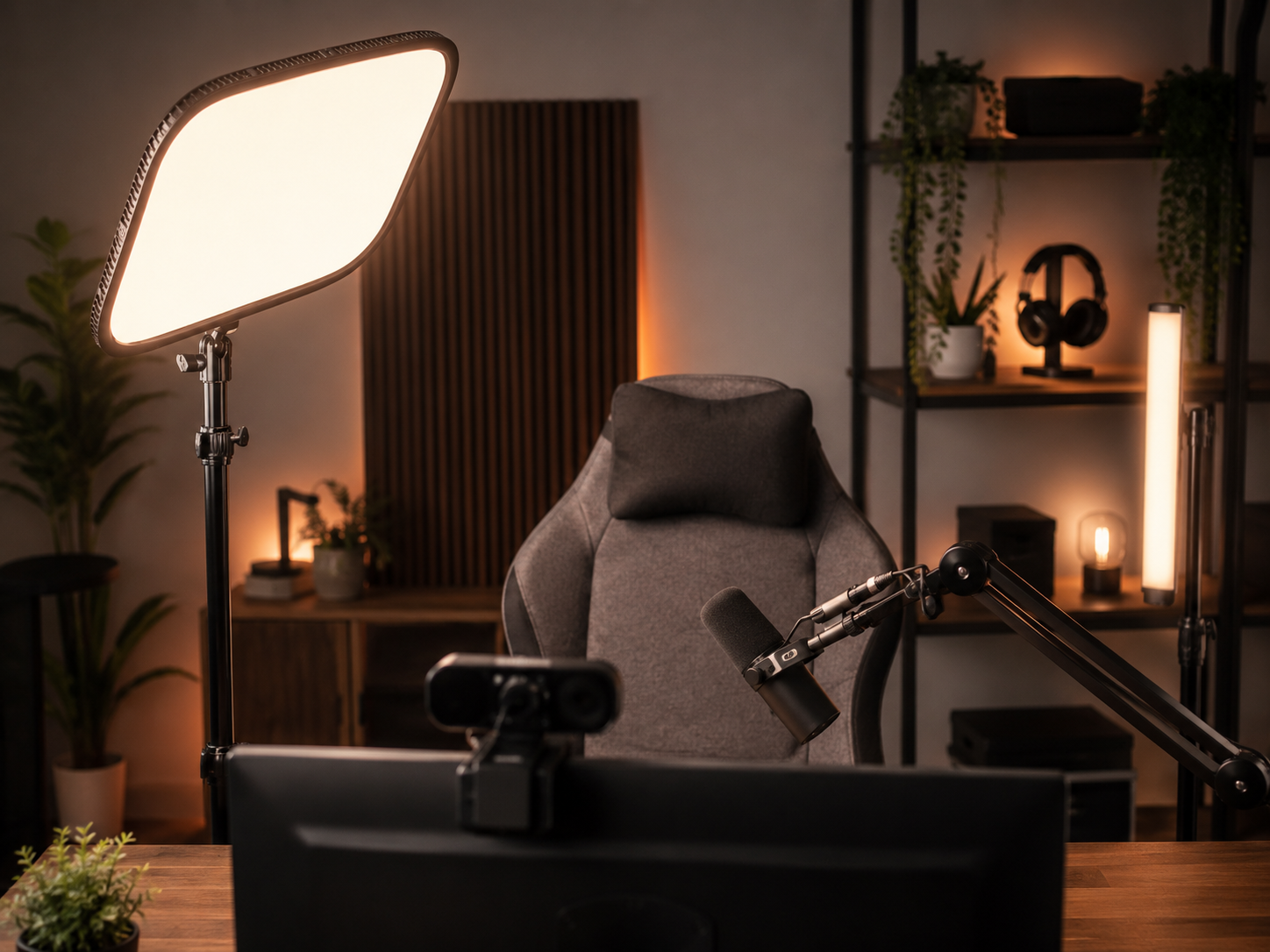
Lighting for Camera
Lighting on your face is the biggest single upgrade a stream can make, and it's the thing new streamers skip. A soft key light positioned off-axis — above and to one side of your face — gives flattering, dimensional light instead of the flat, dark look of a face lit by monitor glow alone. A gentler fill on the opposite side lifts the shadows so you're evenly lit without looking washed out. This is lighting aimed at you, for the camera, and it's entirely separate from screen bias lighting. Get it right and the same camera and room suddenly look far more professional.
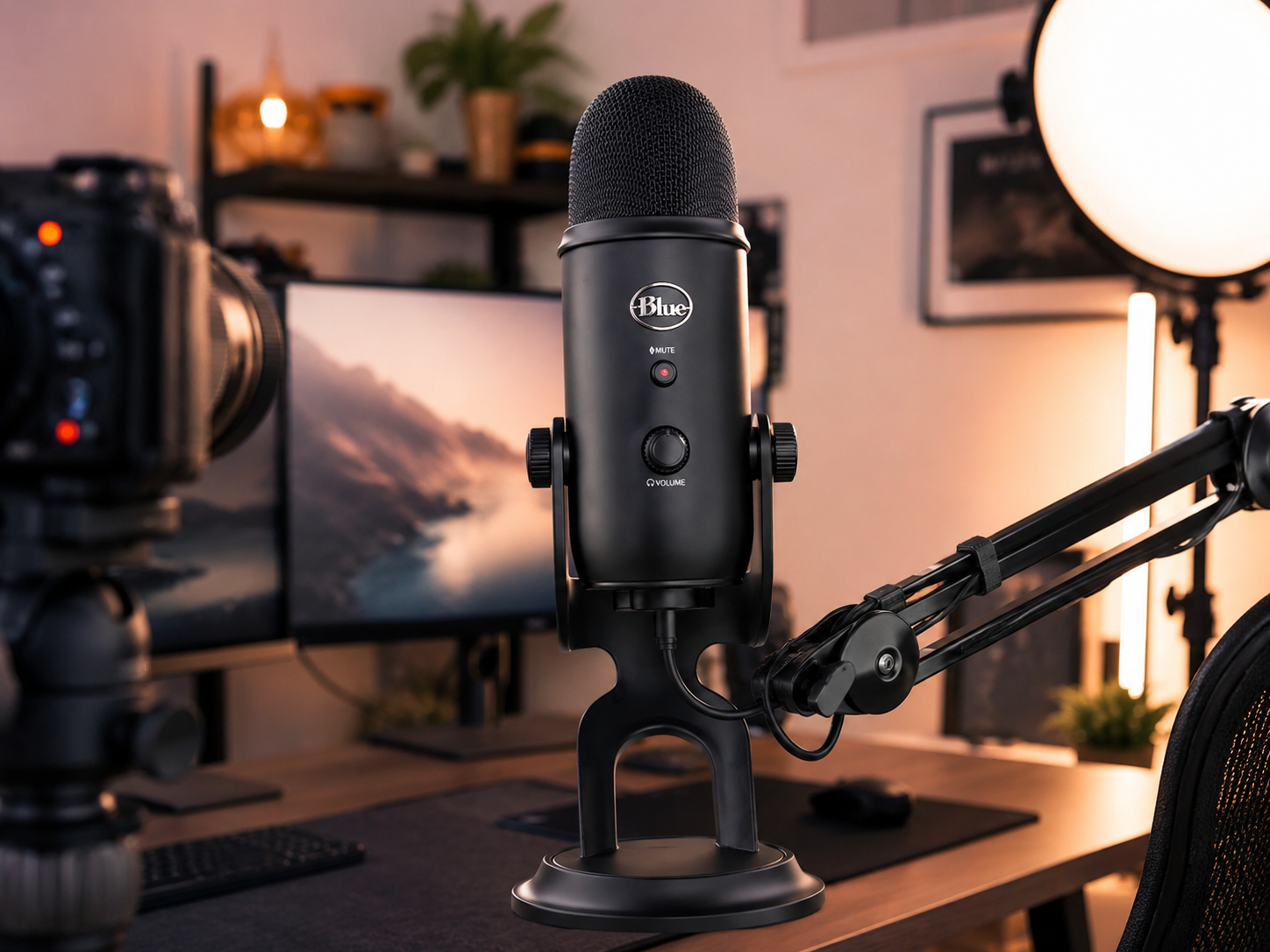
Broadcast-Quality Audio
Audio is where a stream is won or lost, so a proper microphone earns its place near the top of the budget. A quality mic on a boom arm — positioned close, angled toward your mouth, off the desk and out of the shot — delivers the clear, warm voice that keeps viewers listening through quiet moments. The boom arm matters as much as the mic: it lets you place the capsule in the ideal spot without a stand cluttering the desk. Add a little room treatment to tame echo, and set your levels so you're present but not peaking. Clear audio makes a modest stream feel professional instantly.
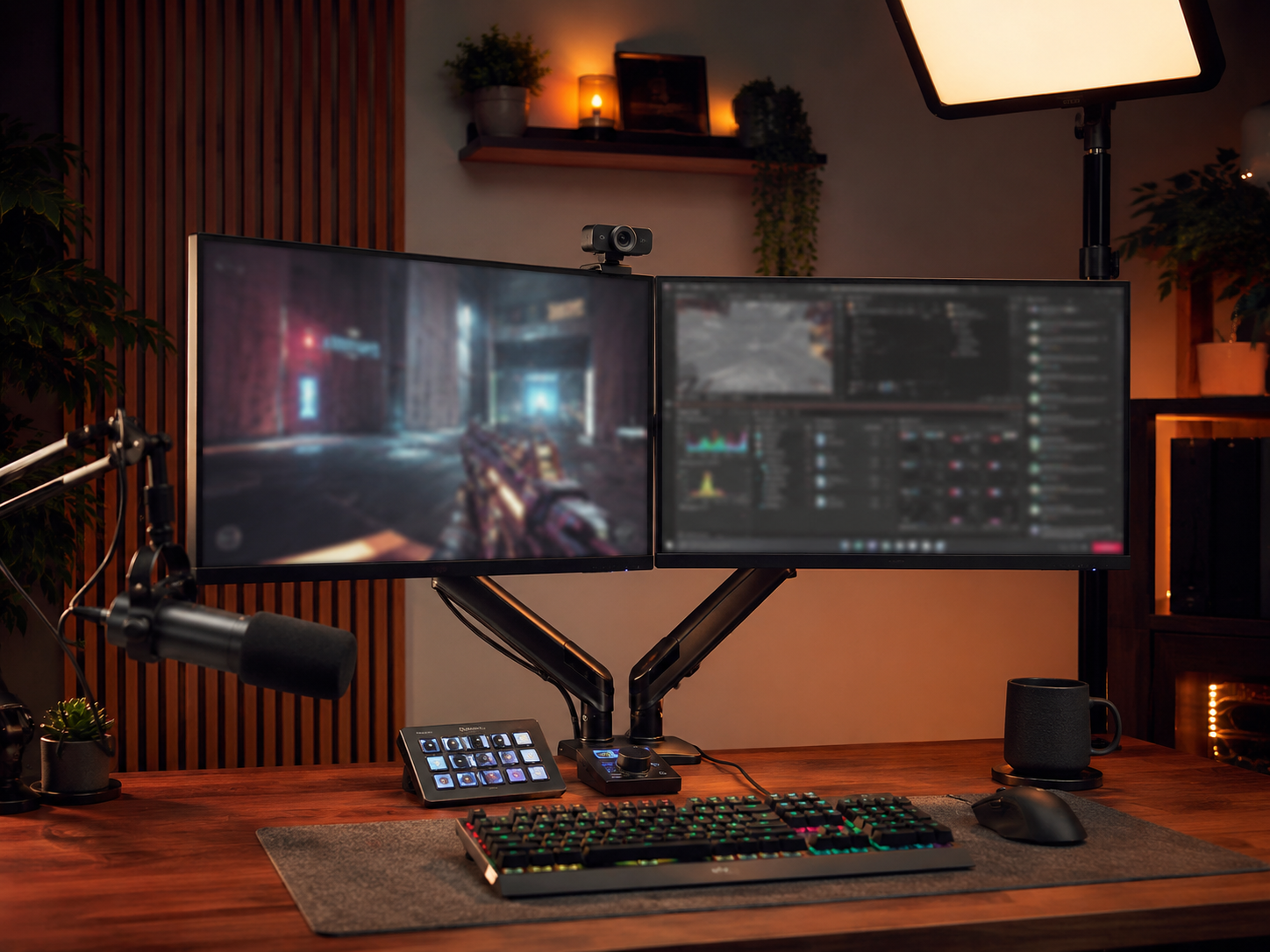
The Streamer's Screen Setup
A streamer's screens have a job a normal gaming setup doesn't: one plays, the other runs the broadcast. The primary monitor is for the game; the secondary is for OBS, chat, alerts, and stream health, so you can keep an eye on the show without leaving what you're playing. Mount both on a dual arm to free desk space for the mic, camera, and control surface, and to make room for the gear a stream needs. This two-screen, game-plus-broadcast workflow is what lets one person run a live production smoothly — playing and hosting at the same time without constantly alt-tabbing.
The On-Camera Background
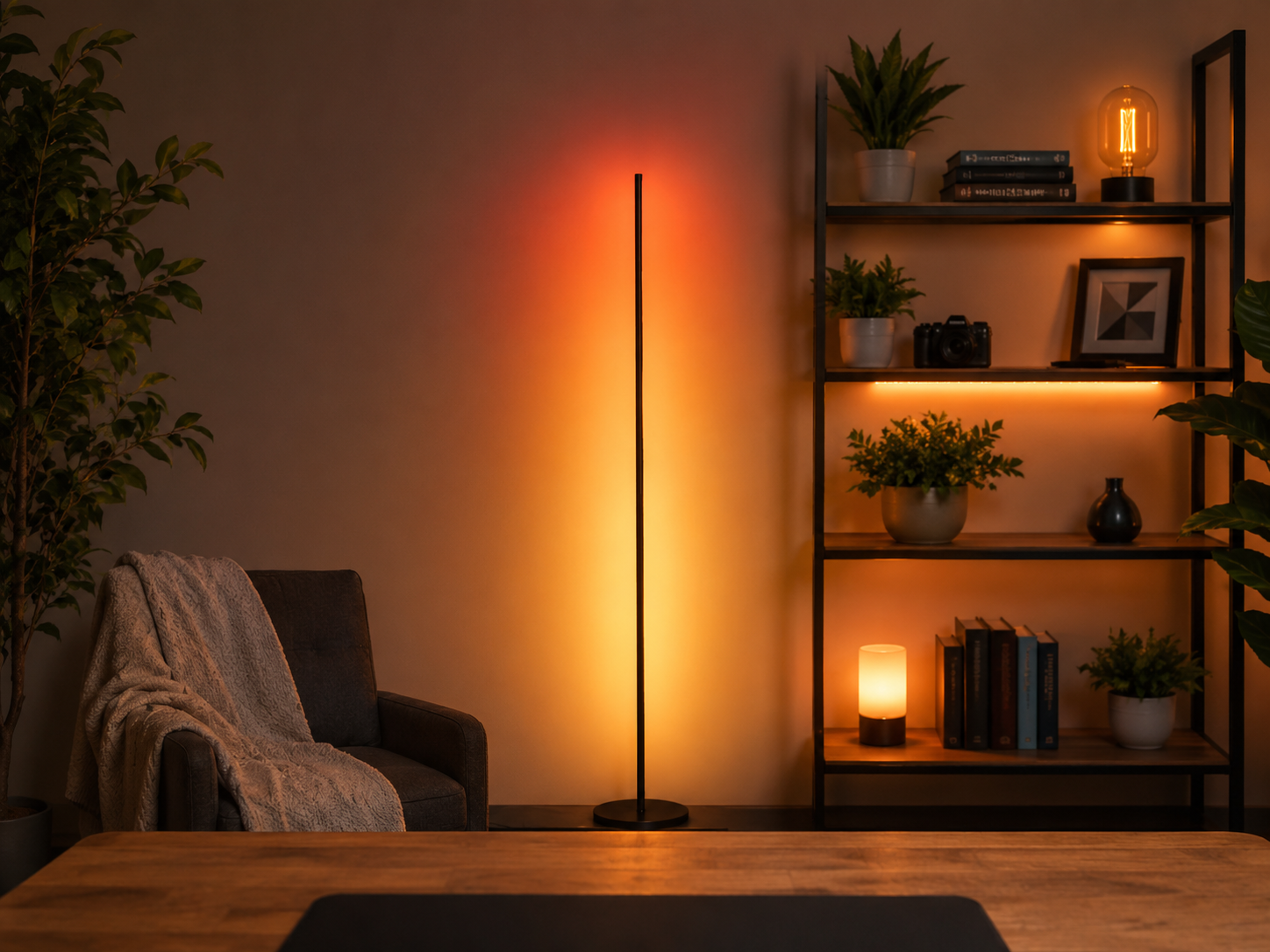
Everything behind you is on screen for the whole stream, so the background is set design. A styled backdrop with a little depth — a shelf with plants and a few tasteful pieces, a subtle accent light adding brand color — reads as intentional and gives your channel a recognizable look. The key is distance: pull your chair a few feet forward of the wall so the background sits softly behind you rather than flat against your head. Keep it tidy and on-brand. You don't need a big room, just a well-composed few feet that look deliberate on camera and make the channel feel like a real production.
Stream Control & Workflow
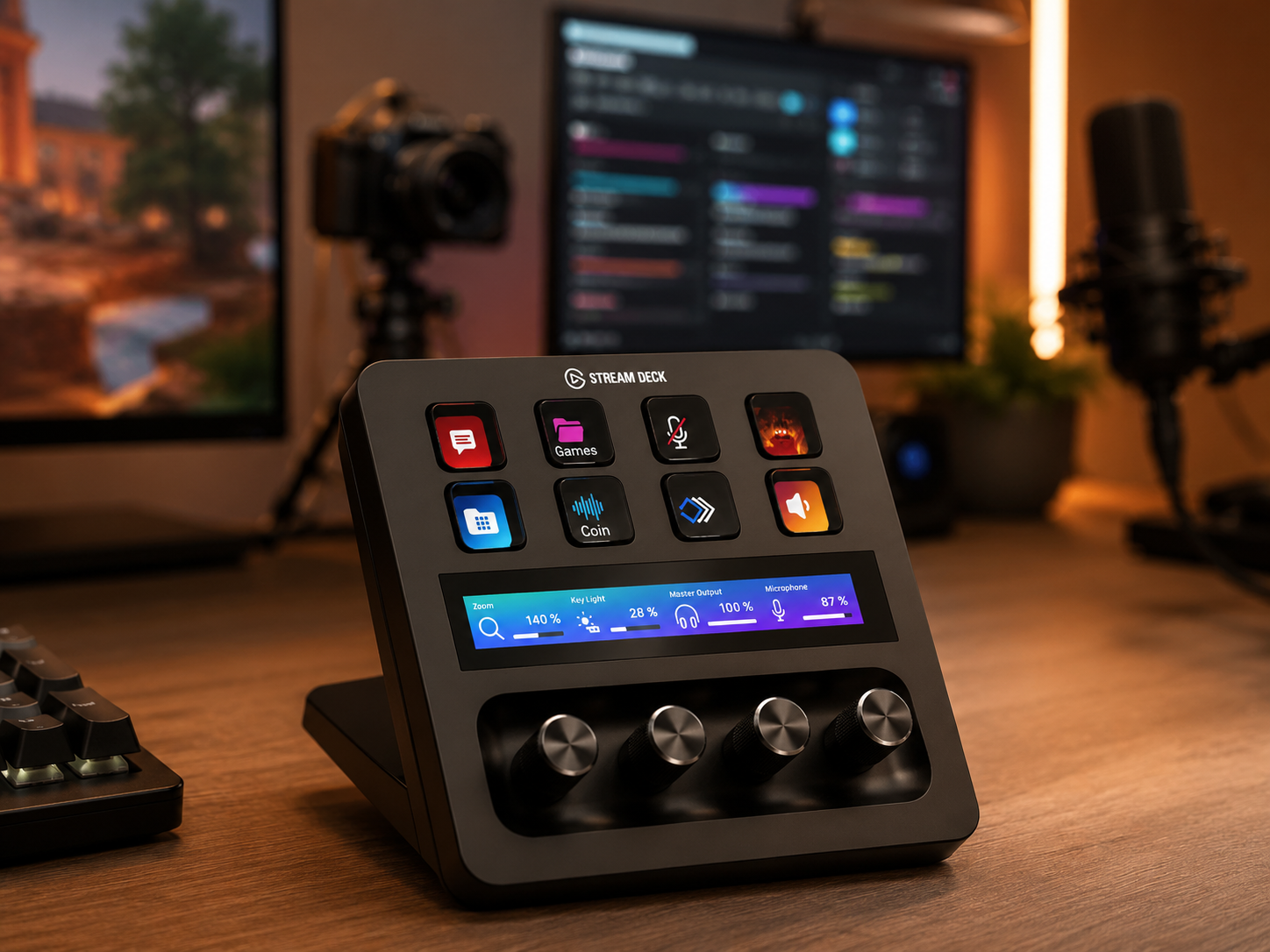
Running a live broadcast solo while you play takes a control surface within reach. A stream deck — a grid of customizable keys — lets you switch scenes, fire alerts, mute the mic, roll clips, and adjust audio with a single tap, without alt-tabbing out of the game mid-match. It turns a pile of manual OBS clicks into muscle memory, so the production runs smoothly in the background while you focus on playing and talking. Pair it with a clean OBS scene layout on your second screen, and one person can run a show that looks genuinely produced. This is the workflow layer that makes solo streaming manageable.
Six pieces that build a streaming setup
Each piece handles a part of the broadcast — the camera, the light on you, the audio, the screen mounting, the background, and the live control. Chosen for what the audience sees and hears.
Some links in this section are affiliate links. If you buy through one of them, we may earn a small commission at no extra cost to you. We only recommend gear we'd use ourselves.
Sony ZV-E10 Mirrorless Camera
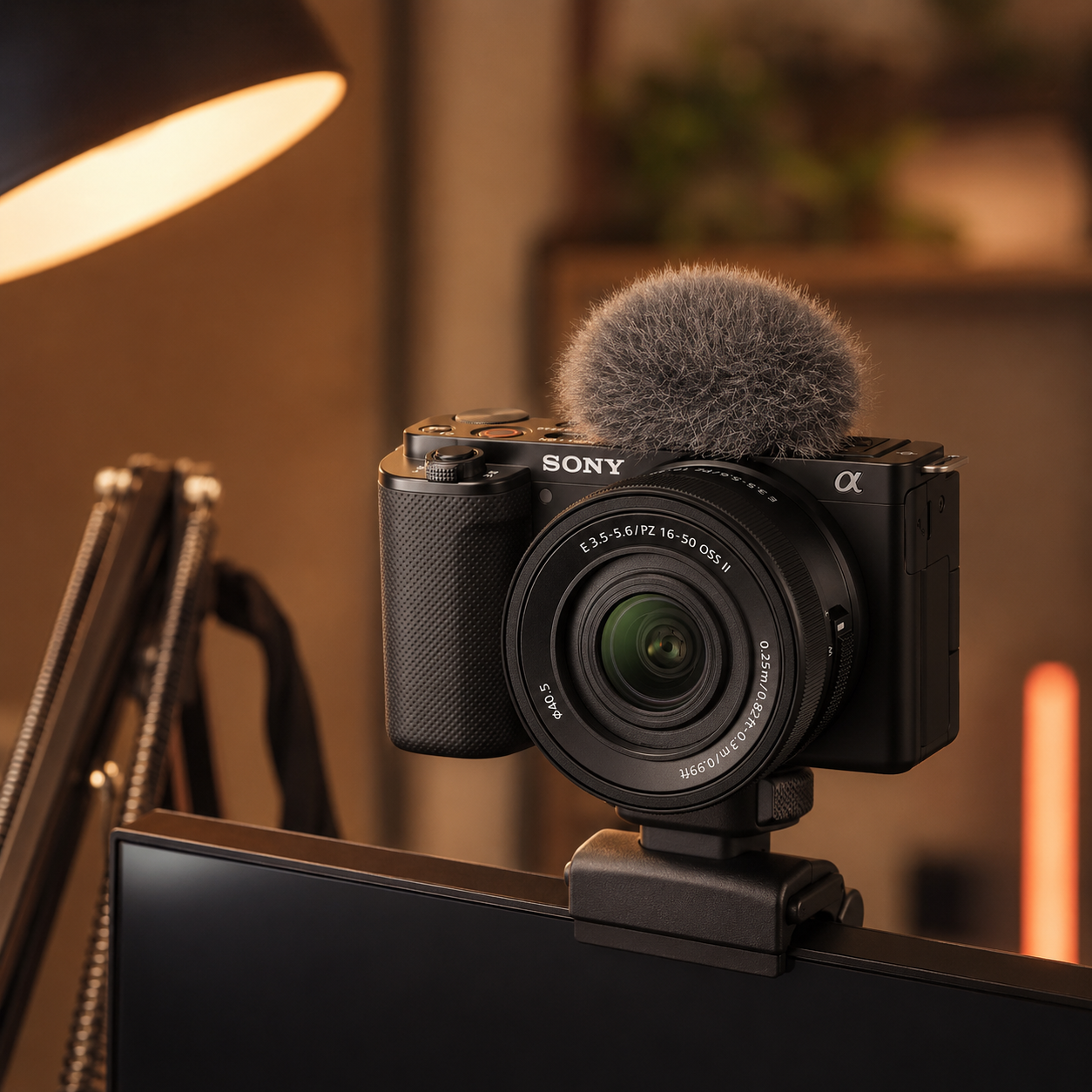
The upgrade that makes a stream look genuinely professional. Where a webcam gives flat, deep-focus video, this APS-C mirrorless camera with an interchangeable lens delivers the soft, blurred background and rich color that separate a pro-looking channel from a beginner one. It was built with creators in mind — flip-out screen, strong autofocus that keeps your face sharp, and clean HDMI out for a capture card. It's an investment, and a good webcam is a fine starting point, but when you're ready to level up the single most visible part of your stream, a real camera like this is the move.
- APS-C sensor for a soft, professional background blur
- Creator-focused: flip screen, reliable face autofocus
- Clean HDMI out for a capture card
Elgato Key Light
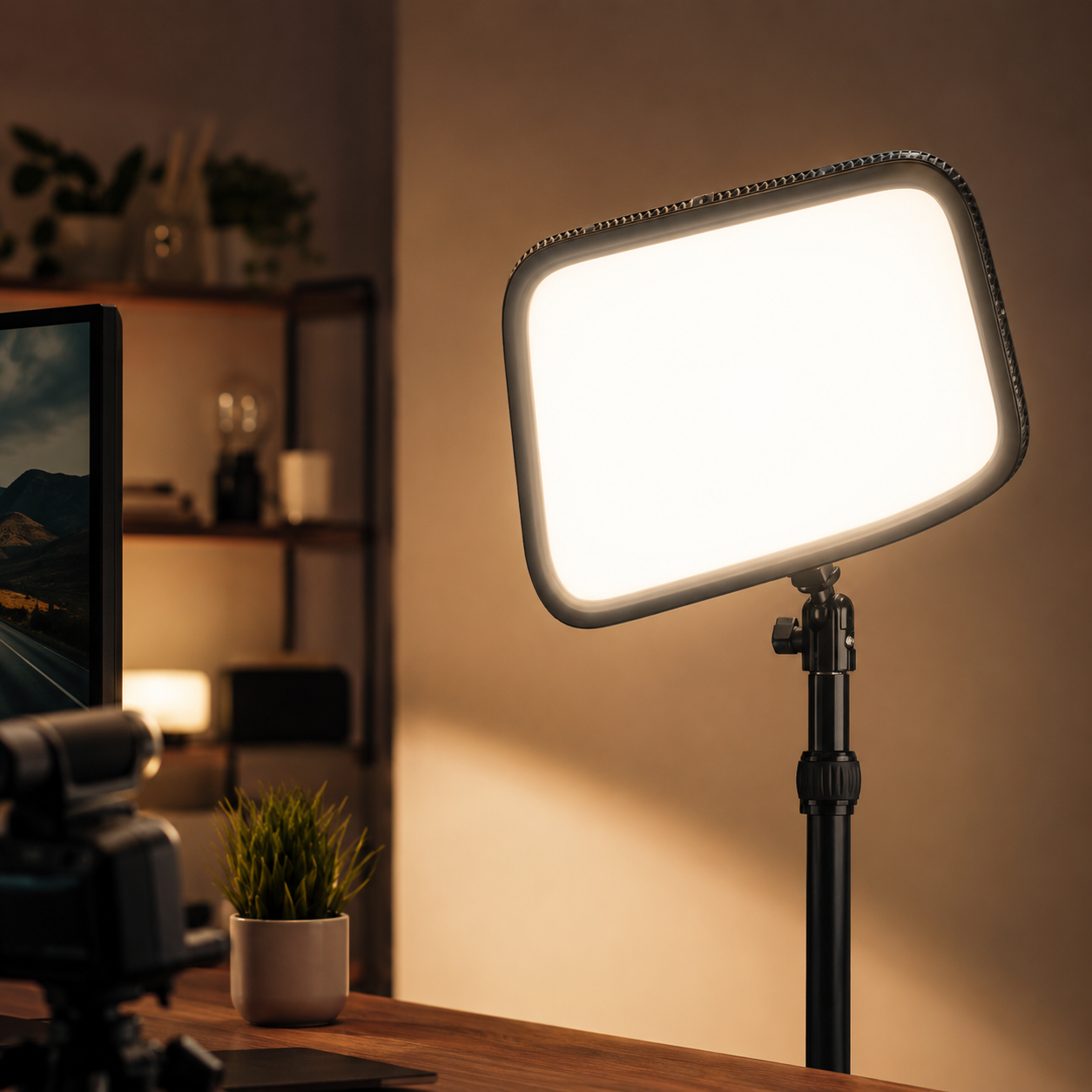
The piece that transforms how you look on camera. This edge-lit studio light throws a soft, even 2800-lumen wash that flatters your face instead of the harsh glare of a bare bulb or the murk of monitor-only light. Mounted off-axis on its included desk clamp, it delivers exactly the dimensional key lighting a stream needs, and its color temperature and brightness adjust from an app so you can dial in the look without touching the light. If you buy one lighting upgrade for streaming, make it this — nothing else moves the needle on production value as fast as proper light on your face.
- Soft, even 2800-lumen output that flatters
- App-adjustable brightness and color temperature
- Desk-clamp mount for easy off-axis placement
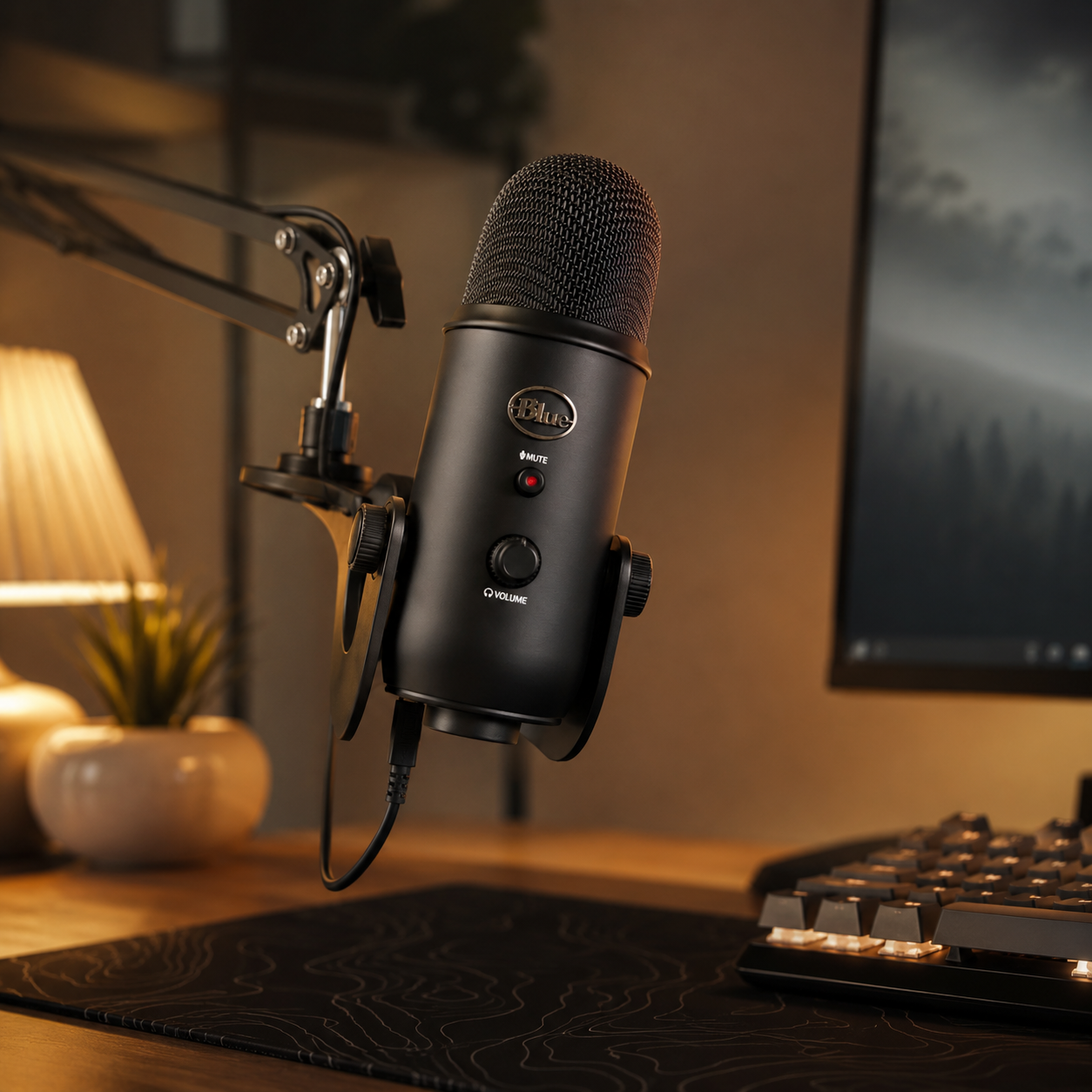
Blue Yeti USB Microphone
The streaming audio standard for good reason. The Yeti is a plug-and-play USB mic that delivers clear, warm broadcast-quality voice without an audio interface to fuss with — ideal for the first serious audio upgrade every streamer should make. Its multiple pickup patterns handle solo streaming, a guest beside you, or a whole desk, and onboard gain and mute controls are right there when you need them. Pair it with a boom arm to place it close and get it out of the shot, and add a pop filter to tame plosives. For the money, nothing does more to make a stream sound professional.
- Plug-and-play USB, clear broadcast-quality voice
- Multiple pickup patterns for solo or guests
- Onboard gain and mute, pairs with any boom arm
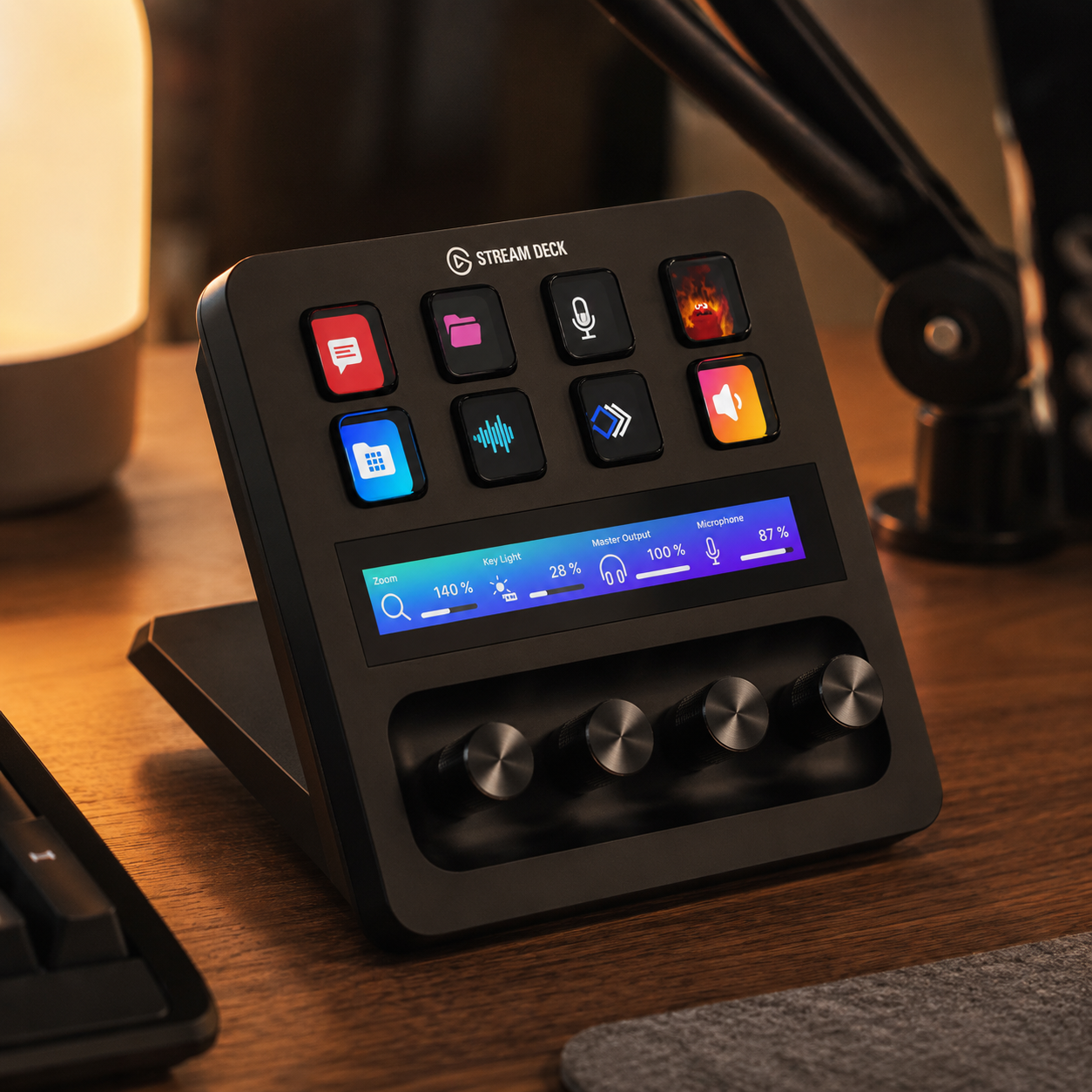
Elgato Stream Deck +
The control surface that makes solo streaming manageable. Its grid of customizable LCD keys puts scene switches, alerts, mic mute, clip triggers, and app shortcuts one tap away — no alt-tabbing out of the game to click around in OBS mid-match. This version adds dials and a touch strip for live audio mixing, so you can balance game, voice, and music on the fly without a separate mixer. It turns the fiddly manual work of running a broadcast into muscle memory, letting one person run a show that looks genuinely produced. The workflow upgrade that pays off every single stream.
- Customizable LCD keys for scenes, alerts, and mute
- Dials and touch strip for live audio mixing
- Runs the broadcast without leaving the game
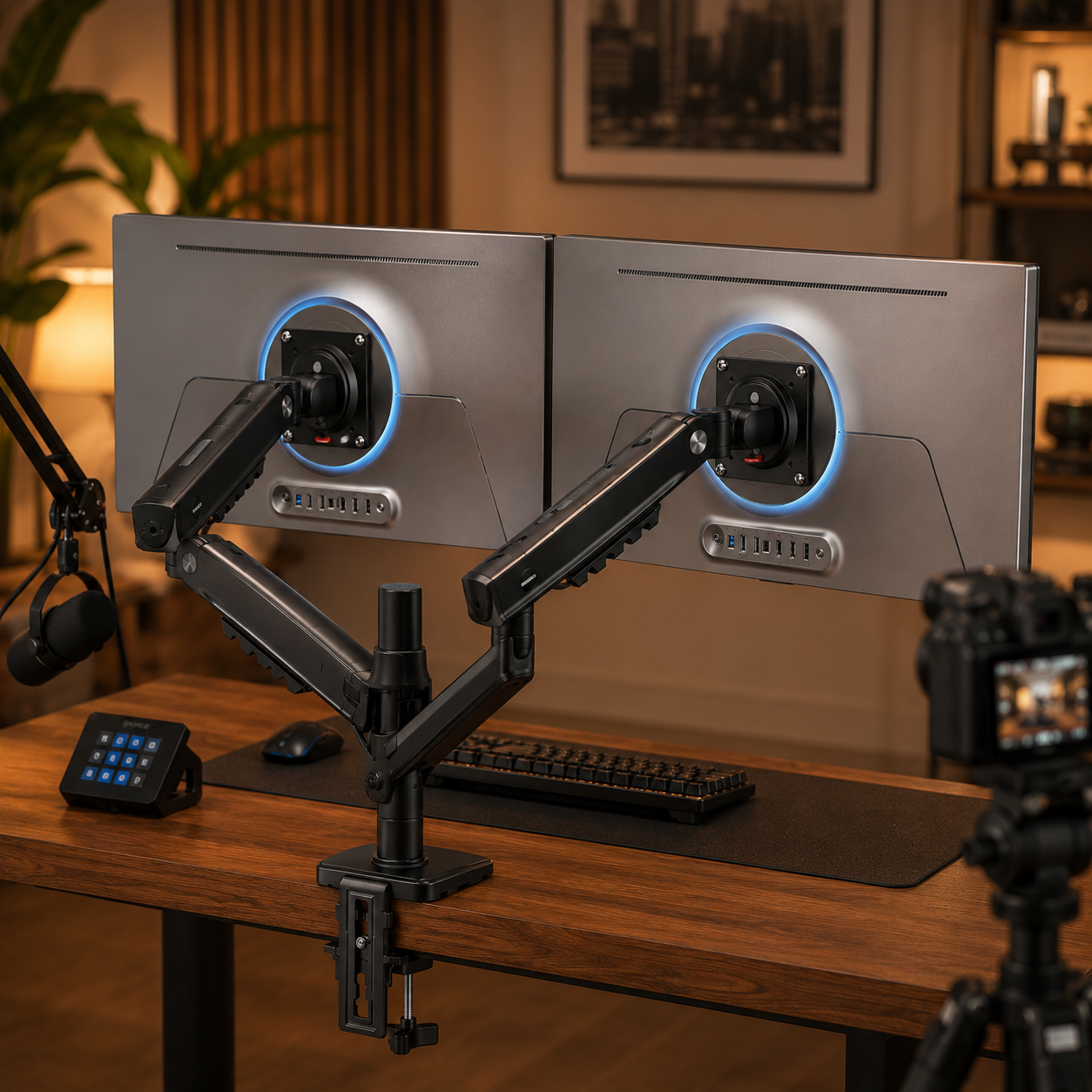
HUANUO FlowLift Pro Dual Monitor Arm
The mount that frees the desk a streaming setup demands. A stream needs room for a mic arm, a camera, a key light, and a control deck — and floating both monitors on this dual arm reclaims exactly that space. It holds the game screen and the broadcast screen at matched height, lets each pivot independently so you can angle the OBS monitor toward you, and routes cables down the pole to keep the shot clean. For screens up to 32", its spring-assisted arms make repositioning effortless. On a desk that has to hold twice the gear of a normal setup, arm-mounting the monitors is what makes it all fit.
- Floats two screens to free desk space for gear
- Independent pivot for angling the OBS screen
- Fits screens to 32", routes cables down the pole
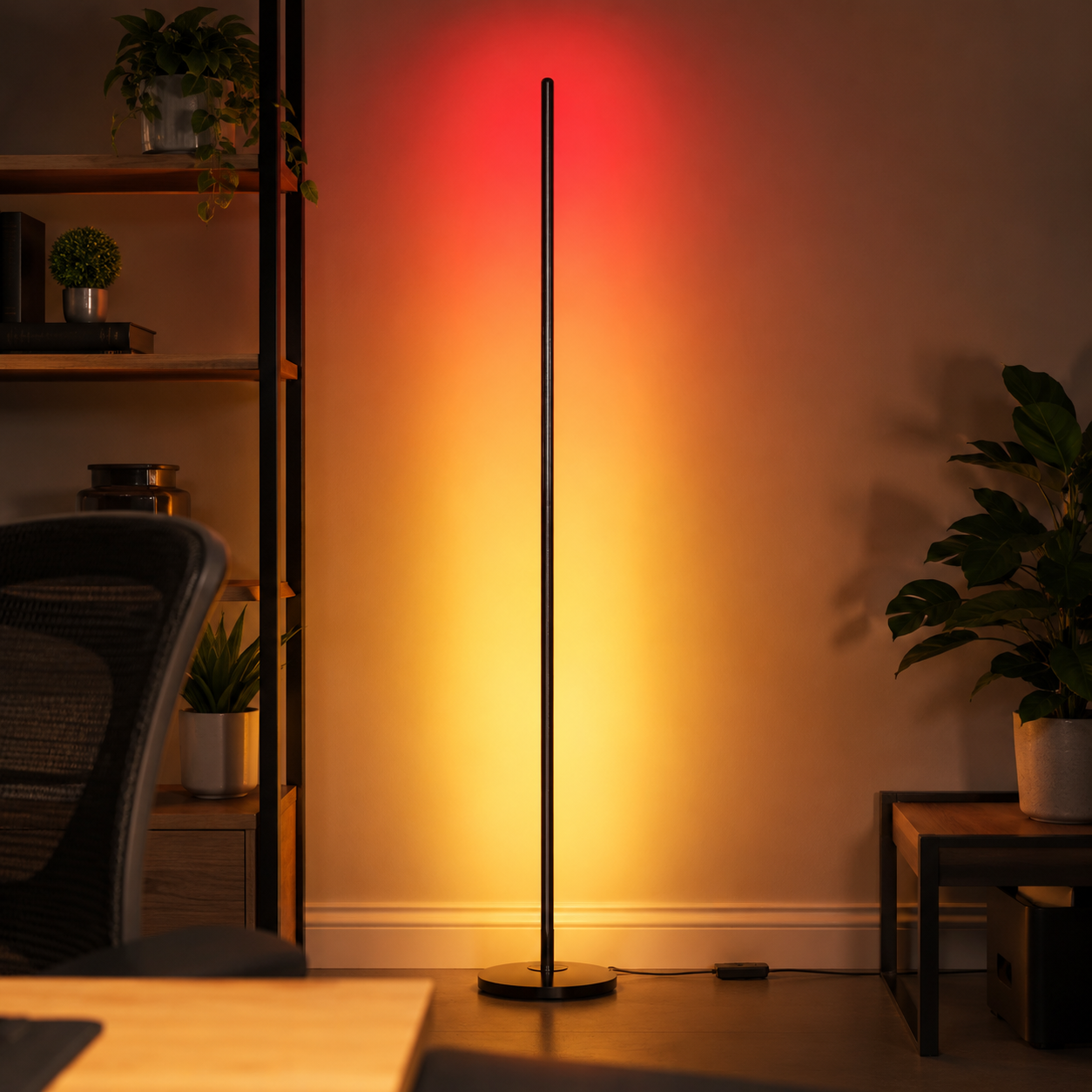
Govee Smart Floor Lamp
The piece that gives your on-camera background depth and brand color. Placed behind you and just out of frame, this smart floor lamp casts a soft wash of color onto the wall — the subtle accent that turns a flat background into a styled, intentional set with your channel's signature color. Unlike the key light on your face, this one is pure atmosphere: set it to a color that matches your branding and it adds the pop of identity viewers come to recognize. App and voice control let you shift the mood per stream. A small, affordable way to make a background look produced rather than plain.
- Soft color wash for background depth and brand color
- Placed behind you, just out of frame
- App and voice control to shift the mood
Four ways streaming setups go wrong
New streamers tend to spend on the wrong things and skip the ones viewers actually notice. Avoid these four and a modest setup outperforms an expensive one.
- 01
Spending on the PC, skimping on audio
The classic beginner mistake is pouring the budget into a faster GPU while streaming through a headset mic that sounds thin and echoey. Viewers never see your framerate, but they hear every second of your audio — and bad audio is the single fastest reason people click away. Flip the priority: a good microphone on a boom arm should come before a graphics upgrade for anyone serious about streaming. Clear, warm audio keeps viewers listening through quiet gameplay; a powerful PC with muddy sound just runs an amateur-sounding stream at a higher framerate. Audio first, always.
- 02
Letting the monitor be the only light
A face lit only by the glow of the screen reads as low-effort the instant a viewer lands on the stream — dim, color-shifted, and flat. It's the most common visual tell of a beginner setup, and it's completely fixable with one light. A soft key light placed off-axis transforms the same camera and room, and skipping it while spending on a nice camera wastes that camera entirely, since even a great sensor can't fix bad light. Light the face before you upgrade the lens. Proper lighting is the cheapest, most dramatic jump in how professional a stream looks.
- 03
A cluttered or flat background
Whatever's behind you is on camera the entire stream, and two failure modes both read as amateur: a messy pile of laundry and cables, or a blank wall your head is pressed flat against. The fix is a little styling and a little depth — a tidy shelf with a few plants and decor pieces, a subtle accent light for color, and a few feet of distance between you and the wall so the background sits softly behind you. It doesn't take a big room or much money, just intention. A composed background is a big part of what makes a channel look like a real production.
- 04
No workflow — fighting OBS mid-stream
Trying to run a broadcast by alt-tabbing into OBS to click around mid-match is how streams break — dead air, missed alerts, scenes switched to the wrong thing while the game goes unwatched. The fix is a workflow built for one person: a second screen dedicated to OBS and chat, and a control surface within reach for scene switches, alerts, and mute at a single tap. Set it up once so running the show becomes muscle memory, and you stay in the game while the production hums along behind you. Without a workflow, the production constantly pulls you out of the play.
Streaming setup questions, answered
What do I actually need to start streaming?
Less than you'd think. The essentials are a capable PC or console, a decent microphone (the single most important buy), a webcam, one light on your face, and a stable wired internet connection. You can start with a headset mic and a clip-on webcam and upgrade from there. Prioritize in this order: audio first, then lighting, then camera, then everything else. A modest setup with clear audio, good light on your face, and a tidy background looks and sounds far more professional than an expensive one that ignored those three.
One PC or two for streaming?
For most streamers, one modern PC is plenty. A current mid-to-high-end GPU can game and encode at the same time comfortably, especially using the graphics card's dedicated encoder (NVENC on NVIDIA), which offloads streaming from the CPU with almost no gaming performance hit. A two-PC setup — one to game, one to encode — is a step for established streamers pushing maximum quality, not a starting requirement. Start with one PC and the hardware encoder; only consider a second machine if you're hitting real performance limits down the line.
Webcam or a real camera for streaming?
Start with a good webcam — it's simple, plugs in over USB, and is more than enough while you find your footing. A dedicated mirrorless or DSLR camera (via a capture card) is the upgrade that gives that soft, blurred background and rich, professional image once you're growing and want to stand out. The jump in quality is real, but so is the added cost and setup complexity. Nail your audio and lighting first; a real camera is a “level up” purchase, not a starting one. A well-lit webcam beats a poorly-lit expensive camera every time.
Where should I spend my streaming budget first?
In order of impact on how professional you come across: audio, lighting, then camera. A good microphone on a boom arm is the first serious buy, because viewers judge audio faster than anything else. Next, one key light on your face — the biggest visual upgrade for the money. Then a better camera once those two are handled. A stream deck and a styled background come after. Spending in this order means every dollar goes to something viewers actually notice, rather than to hardware they'll never see.
How do I set up my lighting for streaming?
Start with one key light as your main source, placed off-axis — slightly above and to one side of your face, angled down at you — rather than flat-on, which flattens your features. Add a softer fill light or a bounce on the opposite side to lift the shadows so you're evenly lit without looking washed out. Keep this face lighting separate from any accent lighting in the background. Avoid harsh overhead room lights that cast unflattering shadows. Soft, off-axis key light plus a gentle fill is the two-light setup that makes almost anyone look good on camera.
How do I make my stream background look good?
Treat it as set design, not an afterthought. Style a shelf or the wall behind you with a few plants, some tasteful decor, and a subtle accent light in your channel's color for depth and identity. Crucially, put distance between you and the background — a few feet forward of the wall — so it sits softly behind you rather than flat against your head, which instantly looks more professional. Keep it tidy and on-brand. You don't need a large space, just a well-composed few feet that read as intentional on camera and give your channel a recognizable look.
The best new setups, in your inbox
One thoughtful email. No spam, no fluff.