
Dual monitor gaming setup ideas
Six elements that build the functional two-screen standard — one screen for the game, one for everything else. Where the arrangement, not the spectacle, is what makes it work.
A dual monitor gaming setup solves a specific, everyday problem: the constant Alt-Tabbing. One screen runs the game in fullscreen; the other holds Discord, the browser, Spotify, OBS, a build guide, or chat — everything you used to toggle away from the game to reach. It's the functional standard for competitive play, streaming, and anyone who works at the same desk they game at. The benefit is obvious the moment you stop minimizing your game to answer a message: dual monitors let you stay in the zone while everything else stays visible.
What separates a good dual setup from two screens shoved together isn't the monitors — it's the arrangement. A matched pair at aligned height, the primary centered to your chair, the secondary angled inward, cables routed down a single arm. Done right, two screens look as clean and deliberate as one. The key thing to understand going in: the bezel gap down the middle means you never stretch one game across both panels. The second monitor is a dedicated utility screen, one for the game and one for everything else — and that division of labor is the entire point.
A dual setup isn't about a bigger picture — it's about a second job. One screen games, the other handles chat, tools, and media. The arrangement, not the spectacle, is what makes it work.
This guide breaks a dual monitor setup into six elements, from the matched pair to routing the doubled cabling cleanly. It covers the gear worth buying, the mistakes that make two screens feel jarring instead of seamless, and an FAQ on matching monitors, refresh rates, and dual versus ultrawide. For the single-screen immersive route, see our ultrawide gaming guide; for the maximalist multi-monitor build, the battlestation guide.
What actually makes a dual setup work
A dual monitor setup lives or dies on a handful of arrangement and matching decisions. These five principles separate a clean, functional two-screen rig from two jarring, mismatched displays.
- 01
One screen games, the other works
The whole logic of a dual setup is division of labor. The primary monitor handles gaming — fast refresh, low latency, the screen squared to your chair. The secondary handles everything else — Discord, browser, Spotify, OBS, chat, stats — where speed matters far less. That distinction should drive every decision, including what you spend: put the money into a fast main panel and let the secondary be cheaper and slower. You never stretch one game across both because of the bezel gap; instead you keep the game uninterrupted on one screen and glance at the rest on the other.
- 02
Match the pair — or match what matters
Two identical monitors are what make a dual setup look and feel right. Matching size and resolution keeps cursor movement smooth, window snapping natural, and colors and brightness consistent across both screens — mismatched panels mean odd scaling, jarring text as you drag windows across the seam, and taskbars that don't line up. Matching 27" panels are the popular sweet spot. The one thing that doesn't need to match is refresh rate: a fast main and a slower secondary is fine and saves money. Match size and resolution; the second screen can be slower.
- 03
The arrangement is the whole game
Geometry is what turns two screens into an ergonomic setup. Center the primary directly in front of your chair, then angle the secondary inward — around 25 degrees — so it faces you too, forming a gentle arc instead of forcing a neck twist. Keep both at matched height, top of the main display at or just below eye level, roughly an arm's length away. Narrow bezels help: the smaller the gap between panels, the less the seam distracts when you glance across. Get the angle and height right and the difference between sore and comfortable is just two weeks of small adjustments.
- 04
Float both on a dual arm
Stock stands eat the desk depth a dual setup can't spare and make matched height and inward angle fiddly. A dual VESA arm fixes all of it: it floats both monitors off the surface, sets them to identical height, lets each pivot and angle independently to face the chair, and frees enough desk for a full keyboard, a large mousepad, and a mic arm. It also routes both screens' cables down a single central pole. Check that your monitors support VESA mounting, then mount them — it's the single move that makes two screens look deliberate rather than crowded.
- 05
Sync and connect the primary properly
Two screens introduce a few technical gotchas worth getting right. Enable adaptive sync (G-SYNC / FreeSync) on the primary gaming display only — running it on both can cause flicker when the second screen plays video or browser content. Connect the main monitor via DisplayPort for the most stable high-refresh signal, and double-check Windows didn't default it to 60Hz (it often does). Cap your in-game framerate just below the monitor's max to keep frametimes stable when the second screen is busy. Small settings, but they're the difference between smooth and stuttering.
Six elements that build a dual monitor setup
Each element is about making two screens work as one deliberate system — the matched pair, the arm, the arrangement, and the cabling that keeps a doubled setup clean.
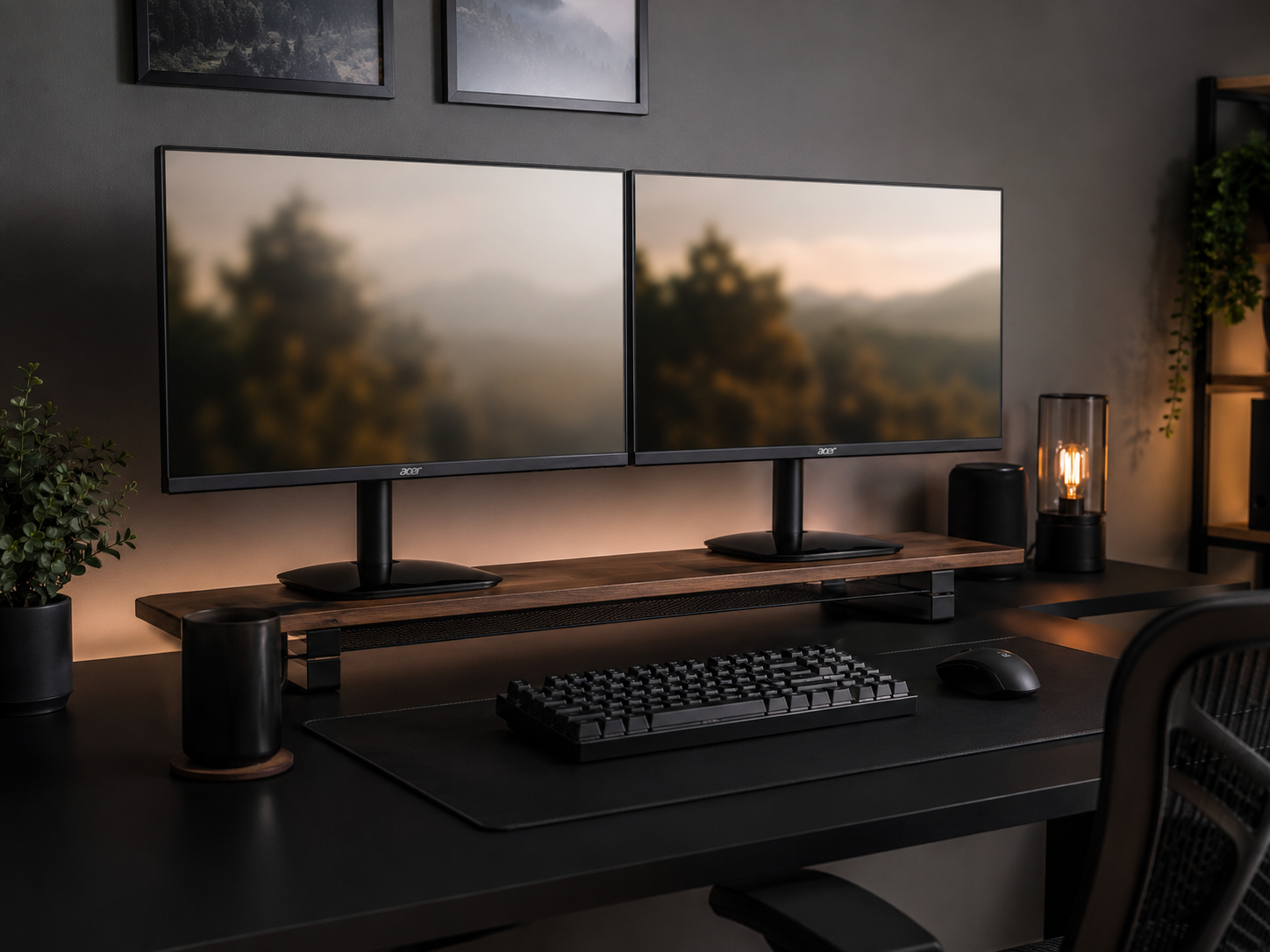
The Matched Monitor Pair
A dual setup starts with two identical monitors. Matching size and resolution — 27" is the popular sweet spot — keeps cursor movement smooth across the seam, window snapping natural, and colors and brightness consistent, which matters more than people expect once they're staring at two panels for hours. Identical bezels and matched heights are what make the pair read as deliberate rather than like two random screens pushed together. Narrow bezels help too: the smaller the gap, the less distracting it is to drag a window across. The matched pair is the foundation everything else builds on.
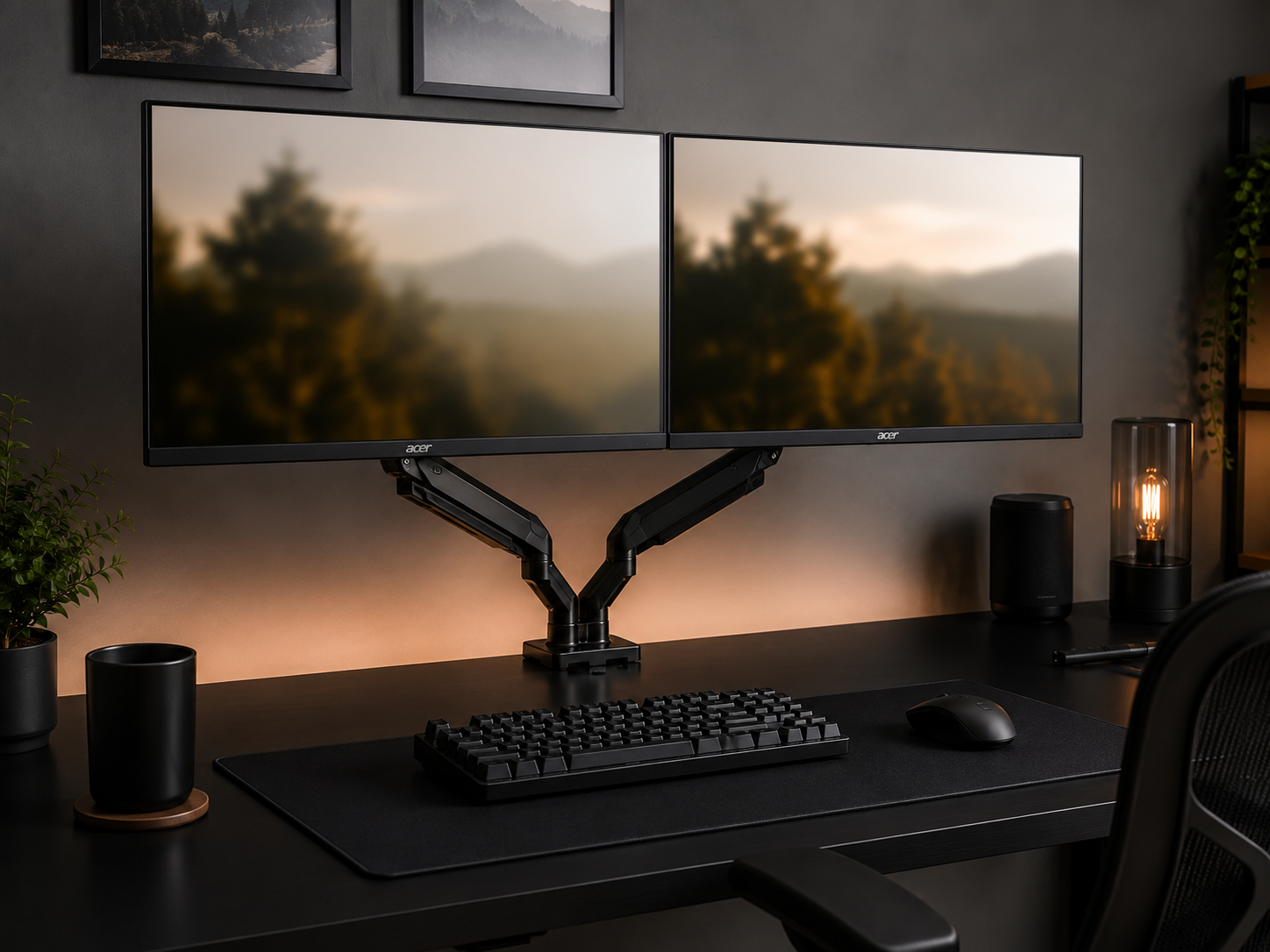
The Dual Monitor Arm
The arm is what makes two screens practical. A dual VESA arm floats both monitors off the desk, sets them to identical height, and lets each pivot and angle independently to face the chair — while freeing the surface beneath for a full keyboard, a large mousepad, and a mic arm that stock stands would crowd out. It also gives both screens' cables a single path down the central pole. Confirm your monitors support VESA mounting first. Of all the moves in a dual setup, mounting on an arm does the most to make two screens look intentional instead of cluttered.
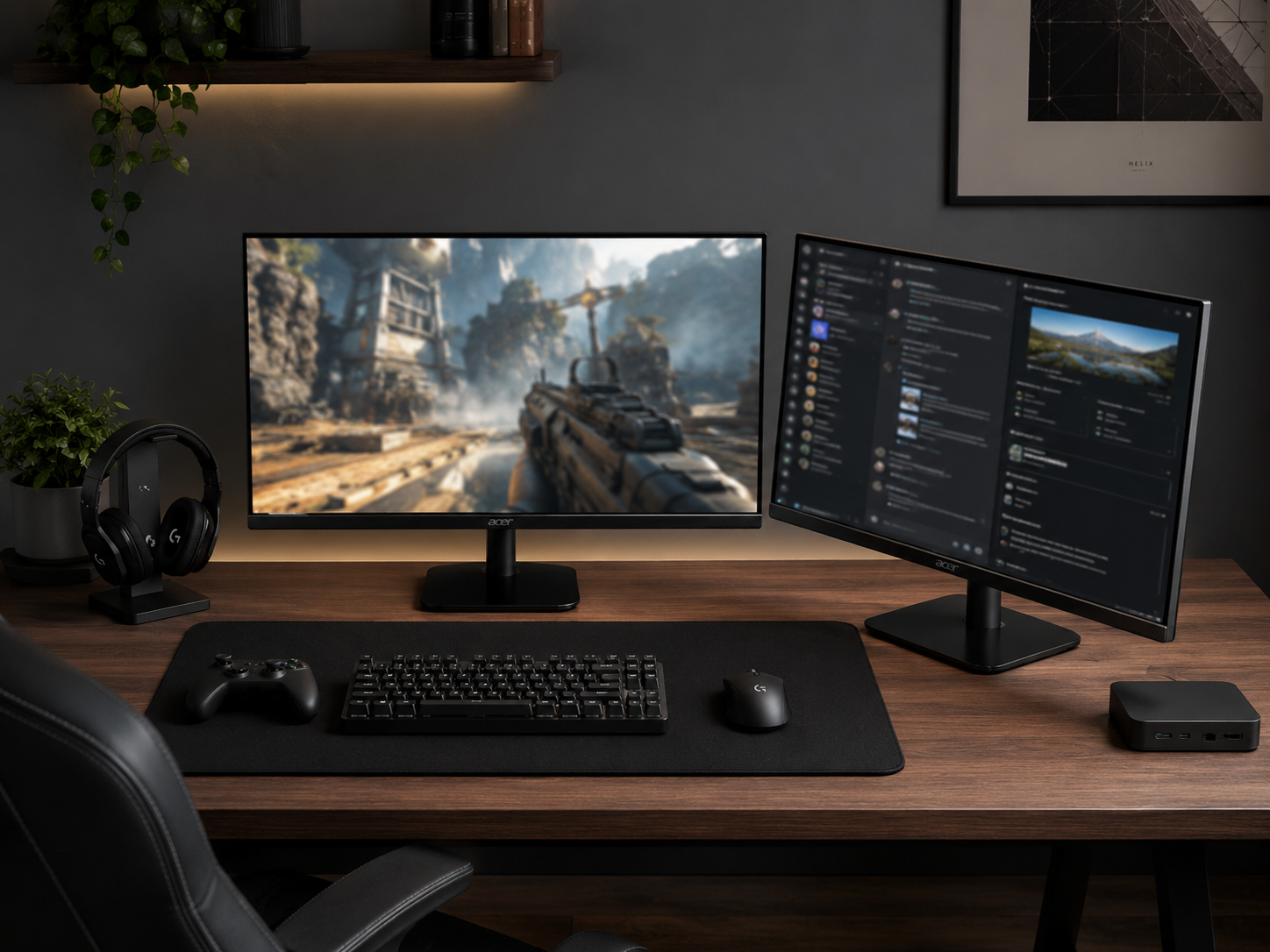
The Primary + Secondary Arrangement
This is the element that defines a dual setup. The primary monitor sits centered, squared directly to your chair, for the game; the secondary is angled inward beside it — about 25 degrees — so it also faces you, forming a gentle arc rather than making you crane your neck. Both stay at matched height to avoid twisting when you glance over. This geometry is what makes the “one for the game, one for everything else” logic ergonomic in practice: the game stays dead ahead, and the chat, tools, and media sit a comfortable glance away. The arrangement is what people get wrong and what makes the whole thing work.
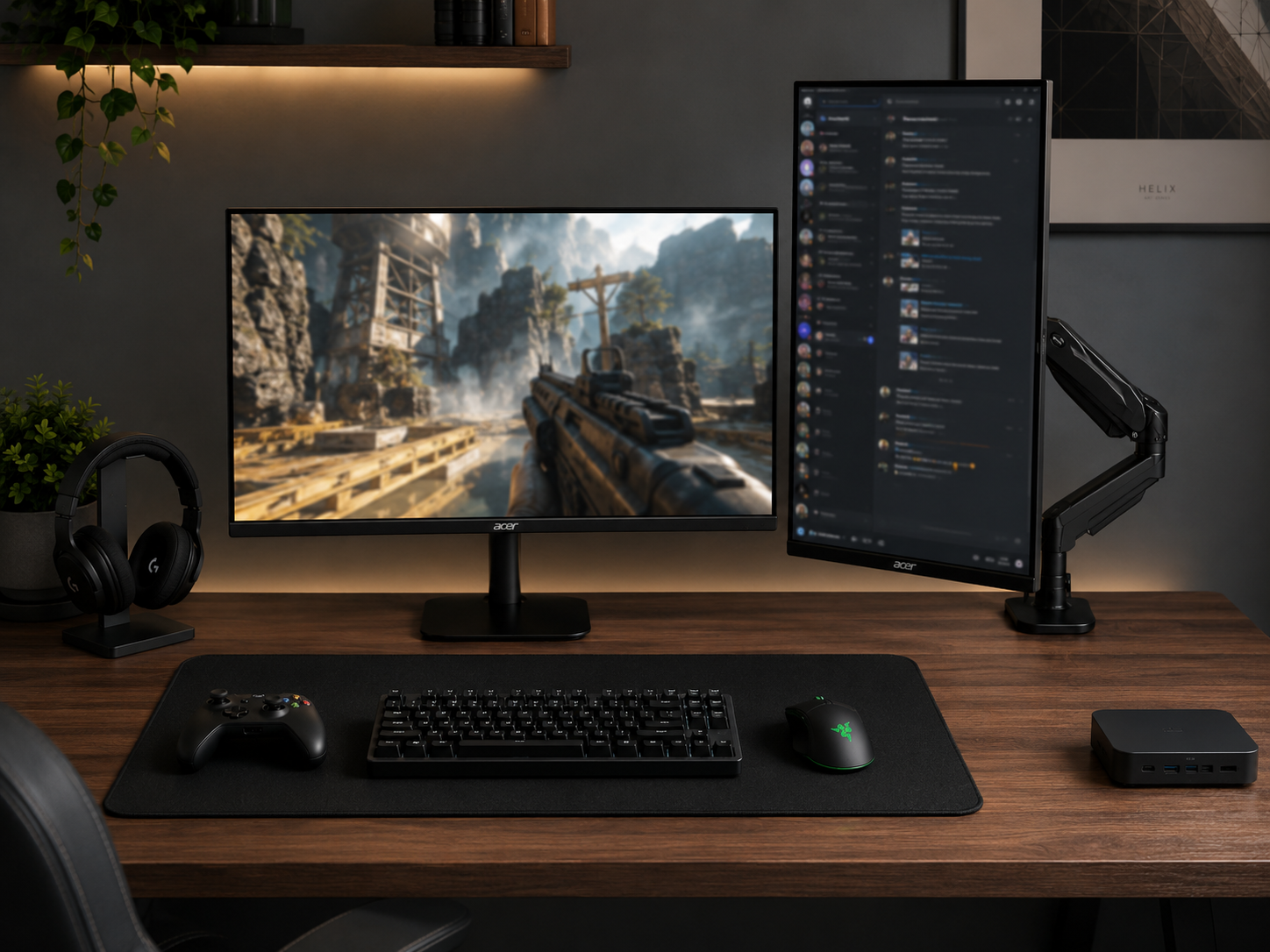
The Vertical Second Screen
A popular variant rotates the secondary monitor 90 degrees into portrait orientation. A vertical second screen is ideal for the tall, scrolling content a dual setup is built to hold — Discord and Twitch chat, code, long documents, social feeds, monitoring tools — stacking more of it in view without eating horizontal space. The contrast does the work: a wide landscape primary for the game, a tall portrait secondary for everything else. A dual arm that allows rotation makes the switch trivial. It's especially loved by streamers and coders, though both-landscape stays better for racing sims that use the second screen for telemetry.
Gaming + Productivity Peripherals
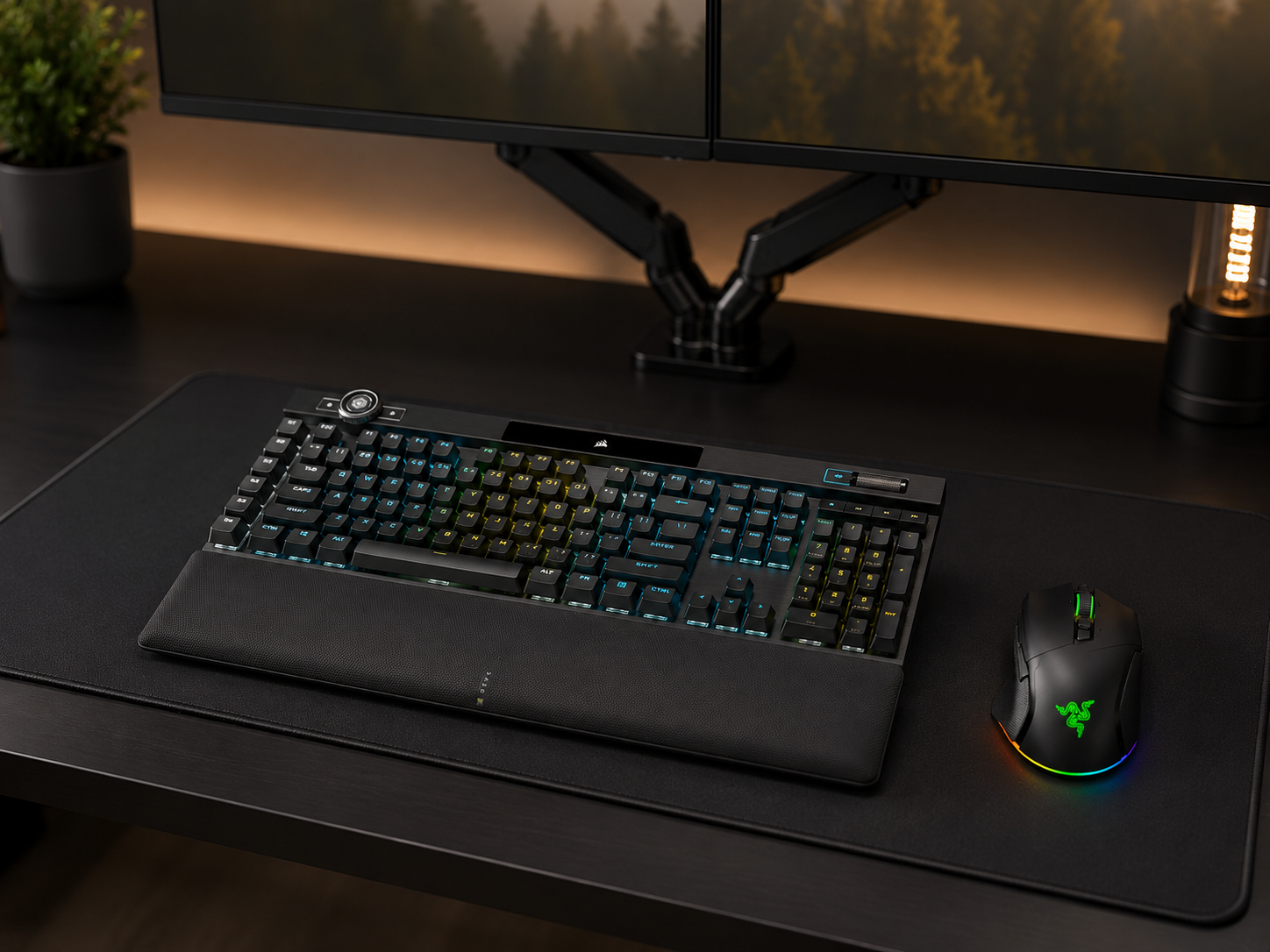
A dual setup is as much a workstation as a gaming rig, so the peripherals should serve both. A performance mechanical keyboard and a precise gaming mouse handle competitive play, while being clean enough to live on a desk you also work at — the dual setup's whole appeal is that one desk does both jobs. Match them to each other and to the desk in a restrained colorway so they don't clutter a surface already holding two screens. A large mousepad gives the mouse room, and the freed desk space from arm-mounting both monitors is what makes room for full-size gear in the first place.
Cable Routing for Two Screens
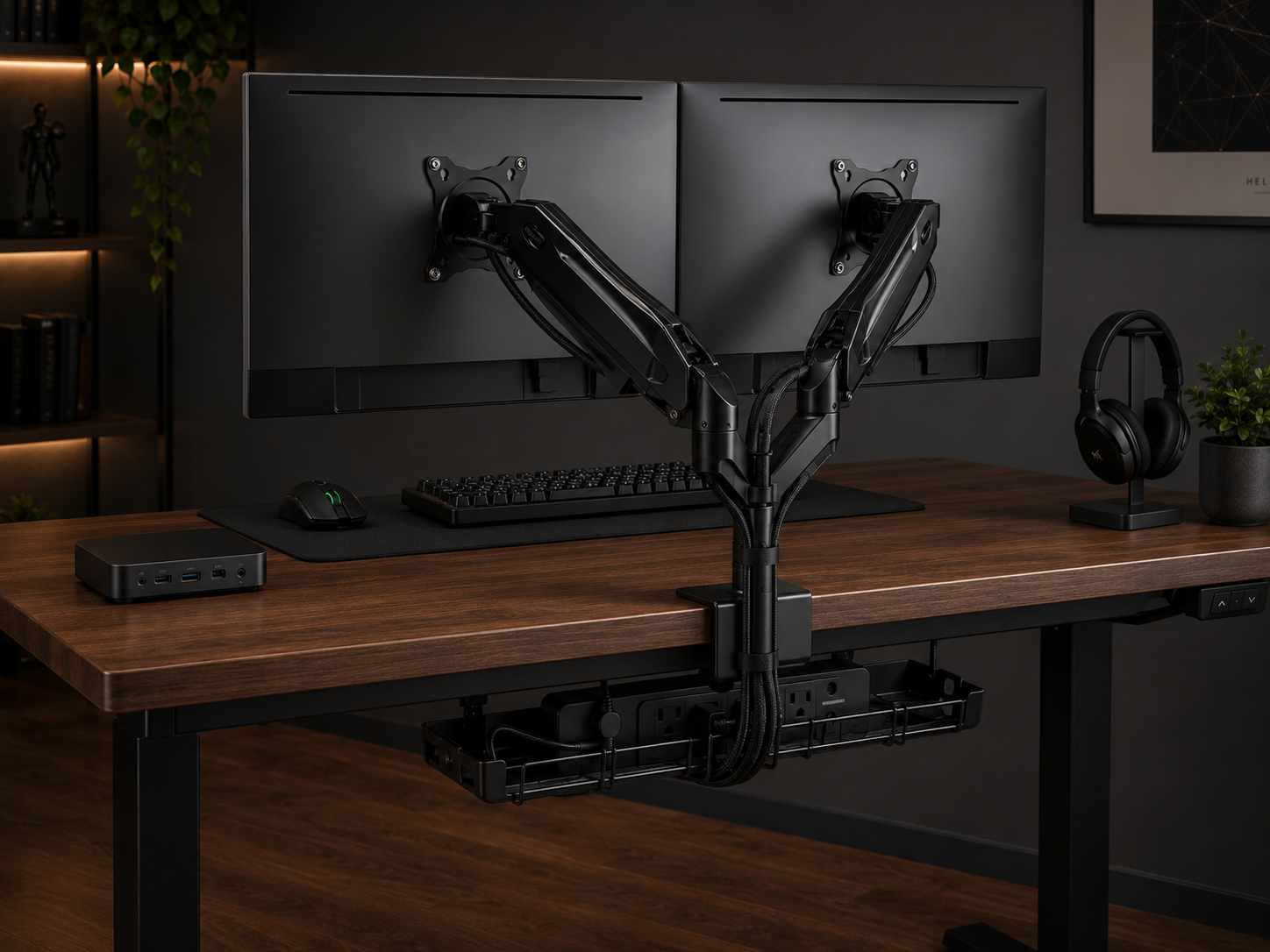
Two monitors double the screen cables — two power, two video — so routing matters more than on a single-screen desk. The dual arm helps: run both monitors' cables down its central pole, bundle them in a sleeve, and drop them into an under-desk tray with one surge-protected power strip feeding the PC, both displays, and accessories. Use a quality DisplayPort or HDMI cable rated for your refresh rate, and secure runs every foot or so — a loose cable tugging on a connector can cause random signal drops mid-match. Done right, two screens stay as tidy at the back as one.
Six pieces that build a dual monitor setup
Each piece serves the two-screen system — the matched panels, the arm that aligns them, the desk wide enough for two, the clean peripherals, and the bias light behind both. Chosen for function first.
Some links in this section are affiliate links. If you buy through one of them, we may earn a small commission at no extra cost to you. We only recommend gear we'd use ourselves.
Acer 27" FHD IPS Monitor (buy two)
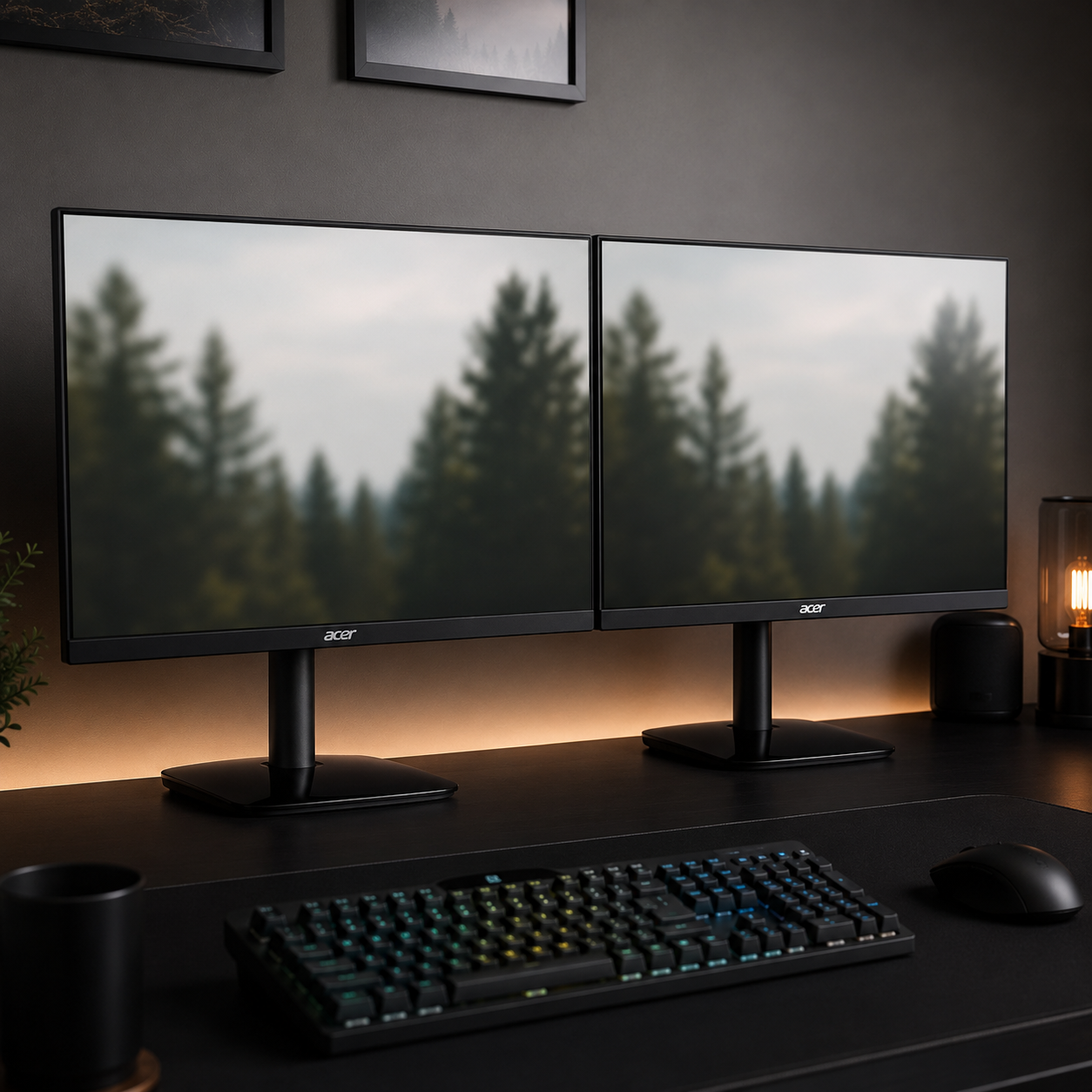
The matched pair a dual setup is built on — and the move here is buying two identical units. A pair of these 27" IPS panels with adaptive sync gives you consistent bezels, colors, and brightness across both screens, which is exactly what keeps cursor movement smooth and the seam unobtrusive. IPS delivers the wide viewing angles an angled-in secondary needs, and FreeSync keeps the main display tear-free. At this price, doubling up is realistic. For the smoothest experience, match the resolution across both; if you want sharper text, a matched pair of 1440p panels is the upgrade, but a matched FHD pair is the affordable, clean way in.
- 27" FHD IPS with adaptive sync — buy two
- Matched bezels, colors, and brightness
- Wide viewing angles for an angled-in secondary
HUANUO FlowLift Dual Monitor Arm
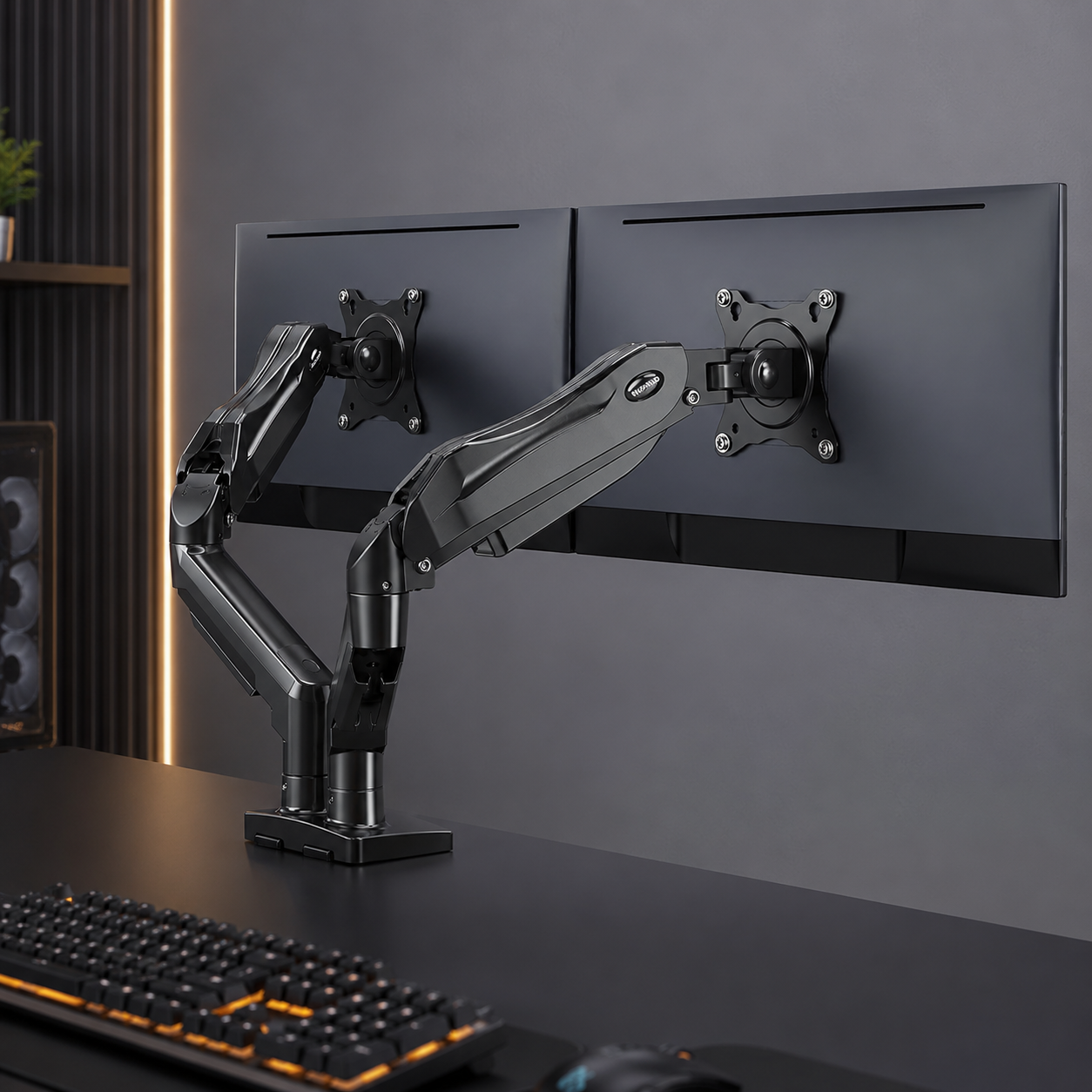
The single most important piece in a dual setup. This gas-spring dual arm floats both screens off the desk, sets them to identical height, and lets each pivot, tilt, and rotate independently — so you can angle the secondary inward and even flip it to portrait. It clamps on with no drilling, frees the surface beneath for a full keyboard and large mousepad, and routes both monitors' cables down the central pole. This is what takes two screens from “crowded” to “deliberate,” reclaiming the desk depth stock stands waste and making matched height effortless.
- Gas-spring dual arm, independent height and angle
- Each screen pivots, tilts, and rotates to portrait
- Clamp-on, frees the desk, routes cables down the pole
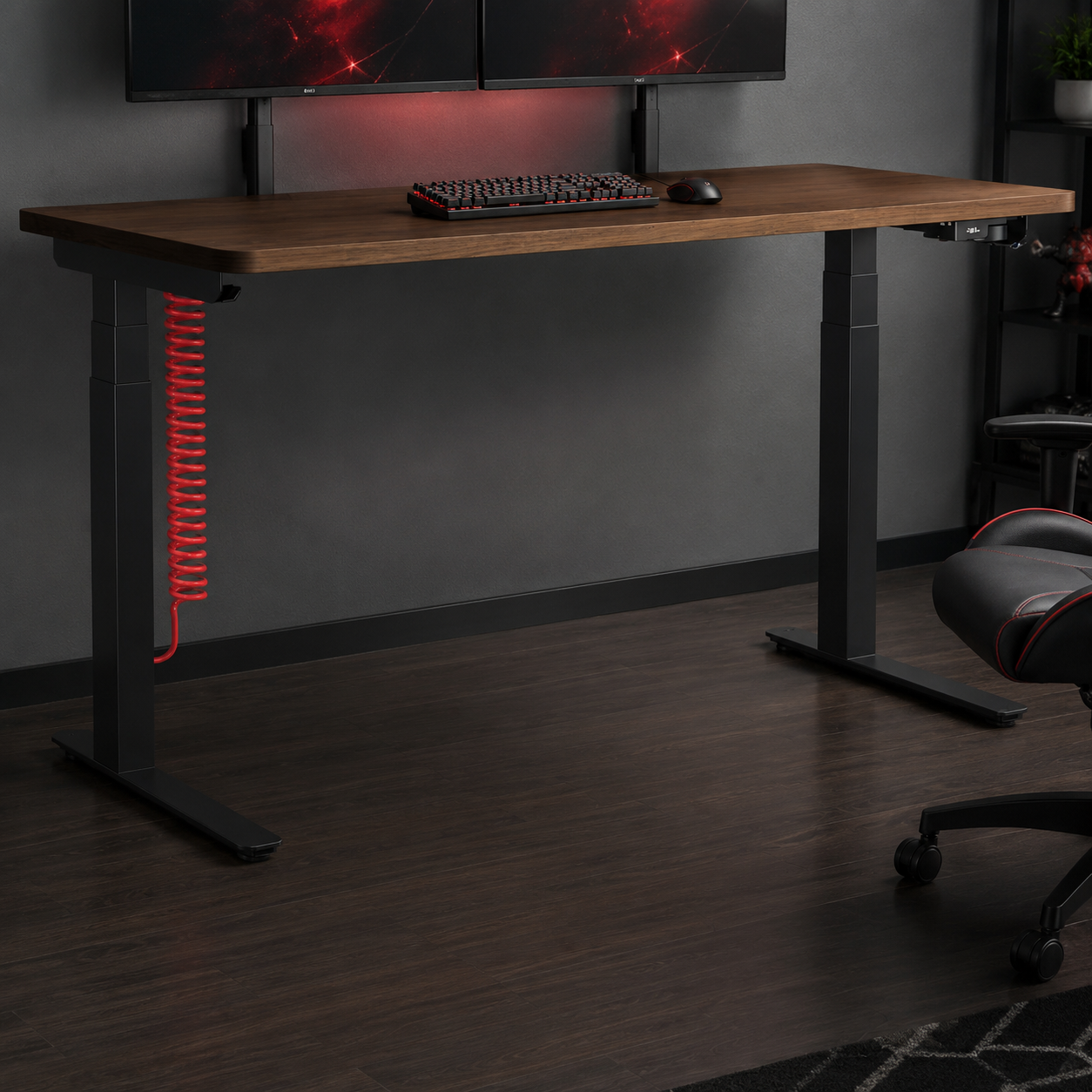
Herman Miller Coyl Gaming Desk
A desk wide enough to do a dual setup justice. The Coyl is Herman Miller's gaming desk — a large, genuinely well-built surface with cable management designed in, which matters double when you're routing two screens' worth of cables. The width gives a matched pair room to sit side by side at a proper viewing distance, with space left for a full keyboard, large mousepad, and a mic arm. It's a premium investment, but on a setup you both game and work at for hours, the build quality and ergonomics earn it. The stable foundation a two-screen rig deserves.
- Wide surface for a matched pair side by side
- Built-in cable management for two screens' cabling
- Herman Miller build quality and ergonomics
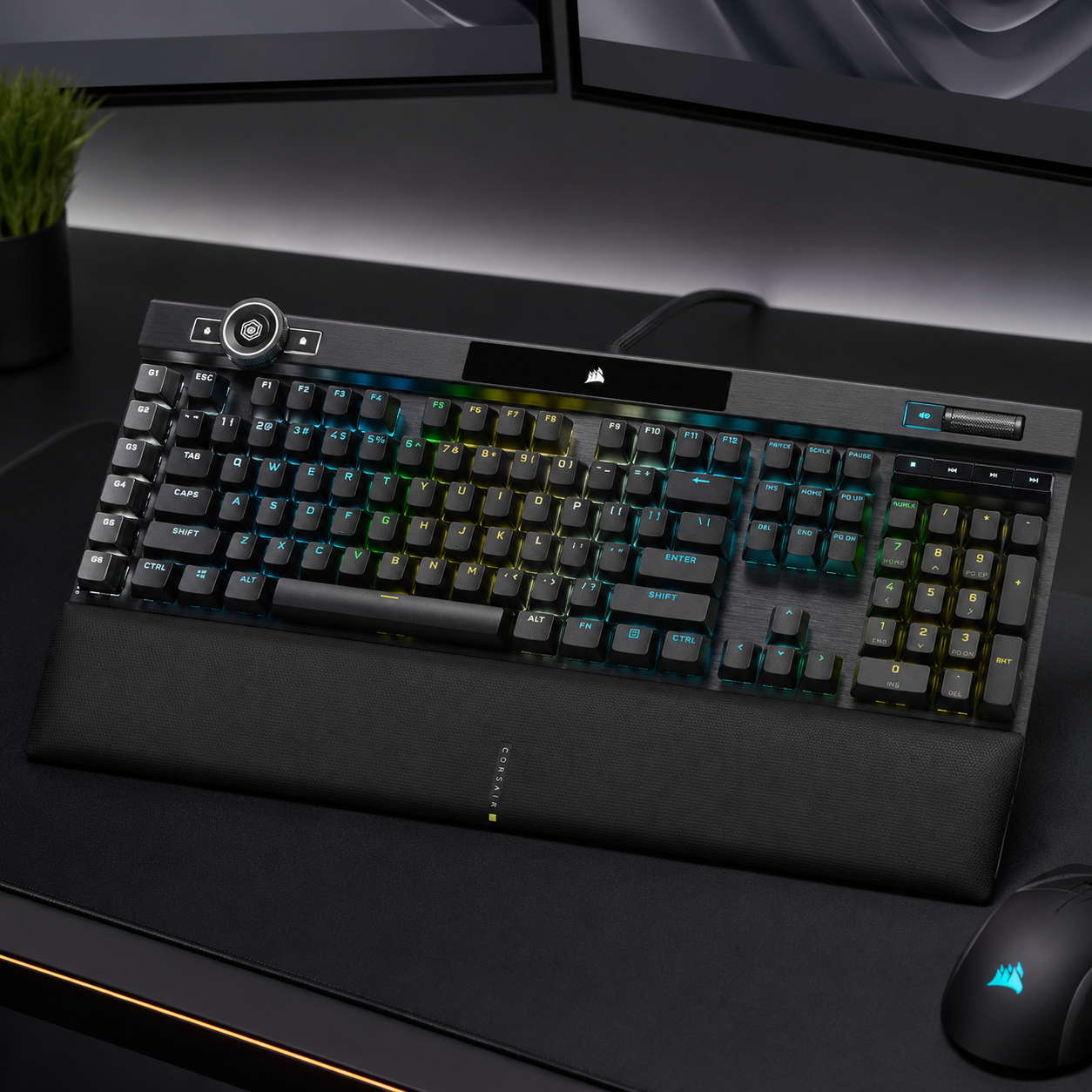
Corsair K100 RGB Mechanical Keyboard
A board that earns its place on a desk that does double duty. The K100 pairs fast optical-mechanical switches for competitive play with a control wheel and macro keys that genuinely speed up the productivity side of a dual setup — managing windows, scrubbing media on the second screen, triggering stream actions. Per-key RGB stays easy to keep restrained so it doesn't clutter a two-screen desk. It's premium, but it's the kind of keyboard that handles the game on the main monitor and the work on the secondary without compromise.
- Fast optical-mechanical switches for competitive play
- Control wheel and macros for the productivity side
- Restrained per-key RGB, premium build
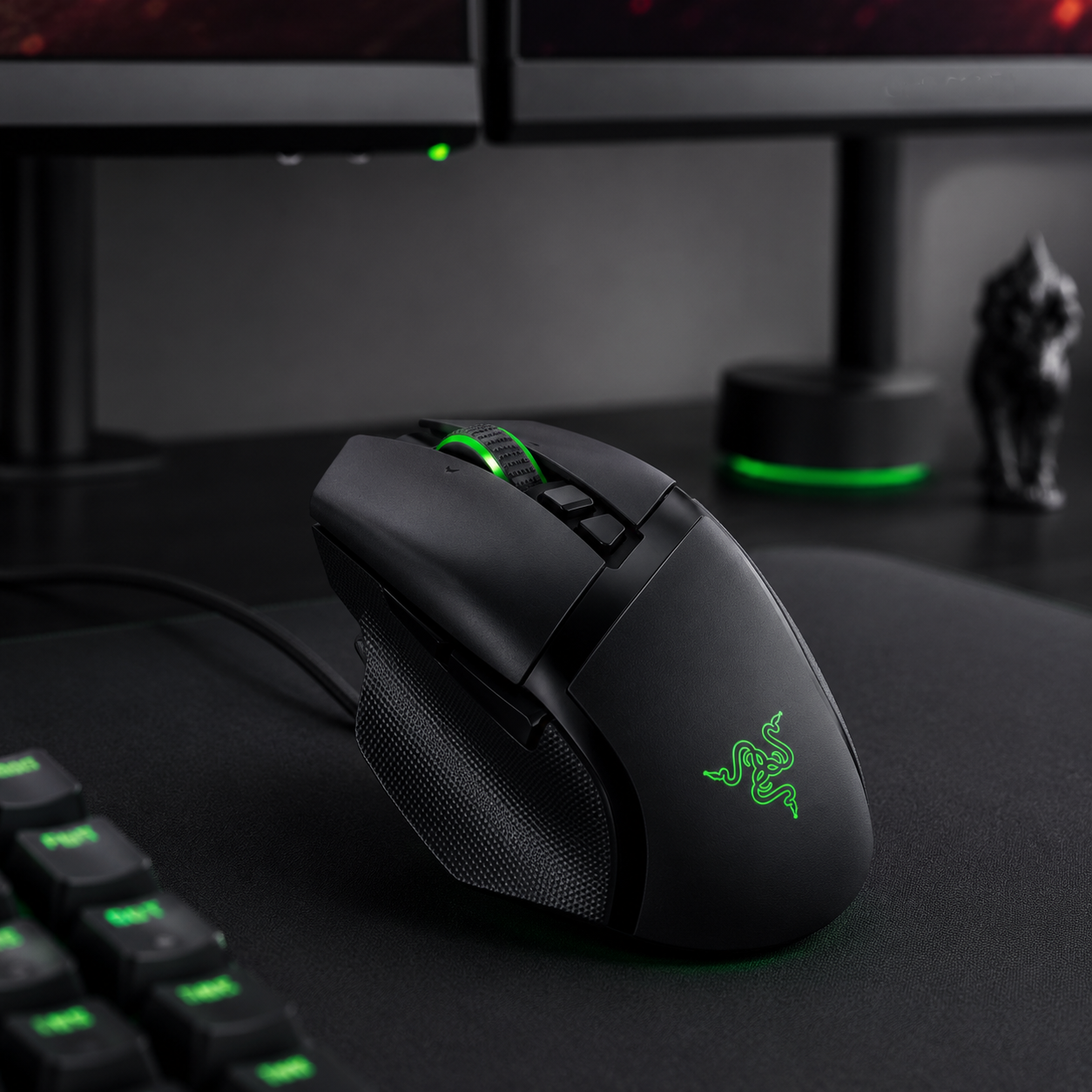
Razer Basilisk V3 Gaming Mouse
A precise, comfortable mouse that suits both jobs a dual setup asks of it. The Basilisk V3 brings a high-precision sensor for competitive play and customizable buttons that are genuinely useful for productivity — map one to switch the active window or jump between screens. Its ergonomic shape holds up over long mixed sessions of gaming and work, and a subtle Chroma underglow can stay restrained to match a clean two-screen desk. Paired with the K100, it makes a cohesive, capable peripheral set for a setup that games hard and works hard in equal measure.
- High-precision sensor, customizable buttons
- Comfortable over long mixed game-and-work sessions
- Subtle Chroma underglow, easy to keep restrained
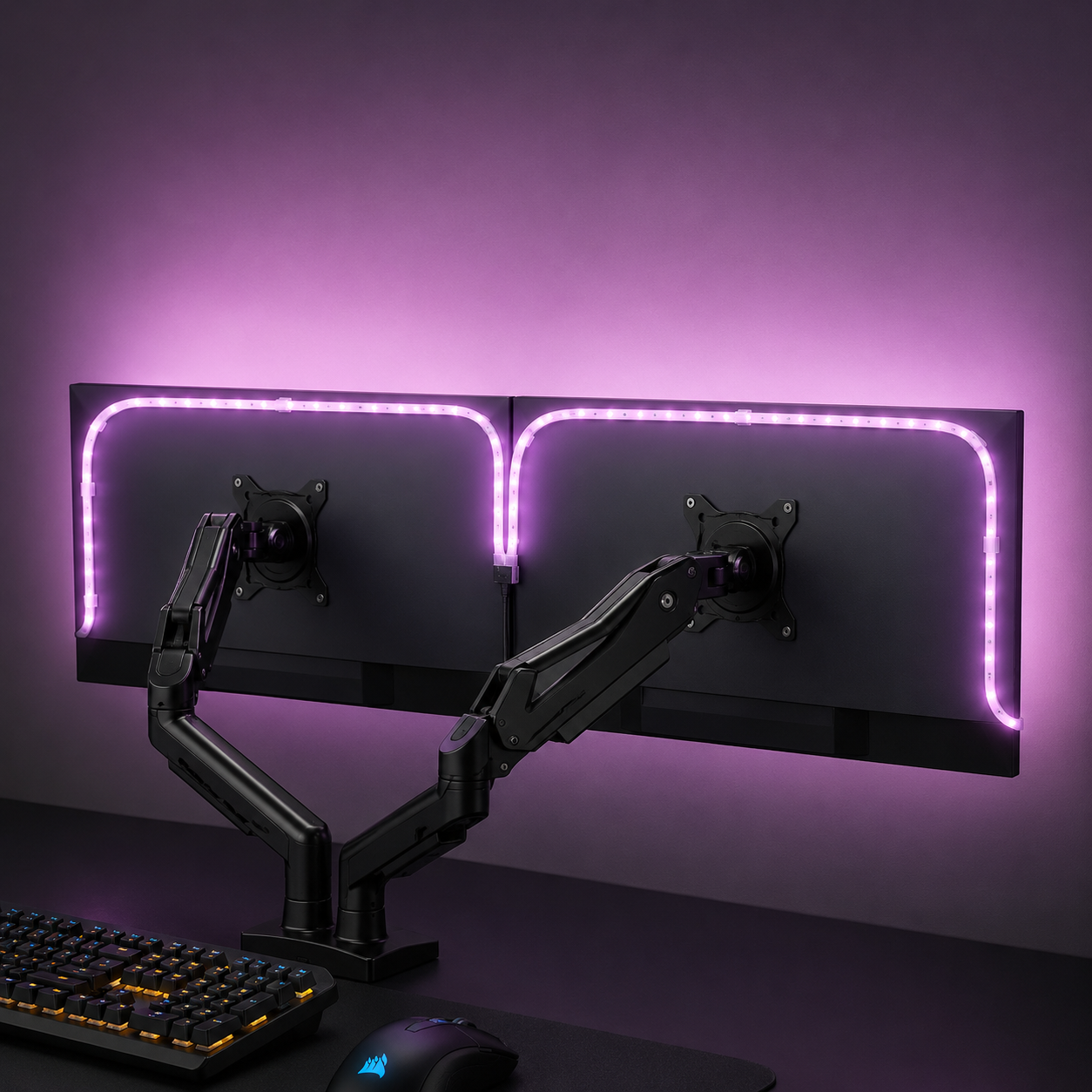
Philips Hue 10ft RGBWW Lightstrip
Bias lighting matters even more behind two screens than one. At 10 feet, this Hue lightstrip has the length to run behind both monitors, casting an even glow across the wall that reduces eye strain over long sessions and hides the gap behind a wide dual arrangement. It does warm whites as well as color (RGBWW), so you can run a soft warm-white bias rather than saturated RGB — the restrained choice that keeps a functional two-screen desk looking clean. Hue scenes and scheduling let you dim it as the evening goes on. The best ambiance upgrade for a dual setup's wide backdrop.
- 10ft length runs behind both monitors
- RGBWW — warm-white bias, not just color
- Reduces eye strain, smart scenes and scheduling
Four ways dual setups go wrong
Two screens are easy to get subtly wrong in ways that nag at you for months. Avoid these and a dual setup feels seamless instead of jarring.
- 01
Mismatched monitors
Pairing two different panels — a 24" 1080p beside a 27" 1440p, say — is the most common dual mistake, and it grates daily. The mismatch forces different scaling on each screen so text blurs as you drag windows across, taskbars misalign, and the cursor seems to jump at the boundary. Colors and brightness won't match either, which is jarring over hours. Match size and resolution from the start, even if it means waiting to afford the second matching panel. The one spec that's safe to differ is refresh rate — a slower secondary is fine; a different size or resolution is not.
- 02
Leaving both screens flat and parallel
Setting two monitors flat, side by side, both facing straight forward, forces you to turn your head and eyes awkwardly to use the secondary — a recipe for neck strain over long sessions. The fix is geometry: center the primary squared to your chair, and angle the secondary inward around 25 degrees so it faces you too, with both at matched height. The arrangement should wrap gently toward you, not sit as a flat wall. This single adjustment is the difference between a setup that's comfortable for hours and one that leaves you sore.
- 03
Adaptive sync on both, and the 60Hz trap
Two technical mistakes bite constantly. First, enabling G-SYNC or FreeSync on both monitors often causes flicker when the second screen plays video or browser content — enable it on the primary gaming display only. Second, Windows frequently defaults a high-refresh monitor to 60Hz, and it's easy to game for a week at 60Hz without noticing; always set the refresh rate manually in display settings. Add a framerate cap just below your main monitor's max to keep frametimes stable when the second screen is busy, and connect the primary by DisplayPort for the most reliable high-refresh signal.
- 04
Expecting one game across both screens
The biggest conceptual mistake is thinking a dual setup gives you one giant immersive display. It doesn't — the bezel gap runs right down your center vision, so stretching a game across both panels puts a thick seam through the middle of the action. A dual setup is two distinct screens with two distinct jobs: game on one, everything else on the other. If seamless immersion across one wide surface is what you actually want, that's an ultrawide, not a dual setup. Go in understanding two screens means two workspaces, and the setup delivers exactly what it's good at.
Dual monitor gaming questions, answered
Do my two monitors need to be identical?
Ideally yes for size and resolution — matching panels keep cursor movement smooth, window snapping natural, and colors and brightness consistent across both screens. Matching 27" 1440p (or 4K) is the optimal setup. Mismatched sizes or resolutions force different scaling on each screen, which blurs text as you drag windows across and misaligns taskbars. You can run different panels if you handle alignment and scaling in display settings, but it's never as clean. The one spec that's fine to differ is refresh rate: a fast main and a slower, cheaper secondary works perfectly.
What refresh rate do I need on each monitor?
Put the speed on the primary. For competitive shooters, aim for 144-240Hz on your main gaming display; the jump from 60Hz to 144Hz is dramatic, while 144 to 240 is a smaller gain mostly relevant to dedicated competitive players. The secondary monitor can sit at 60-100Hz without hurting anything, since it's handling chat, tools, and media where speed barely matters. This split is exactly why a dual setup is cost-effective — you only pay for high refresh on one panel. Just remember to set the rate manually, since Windows often defaults to 60Hz.
Should I get dual monitors or an ultrawide?
It depends on what you want from the second space. Dual monitors win for streaming, competitive play, and productivity — anywhere you need a dedicated screen always visible for Discord, chat, OBS, or stats without alt-tabbing. An ultrawide wins for seamless immersion in single-player games and a cleaner one-screen desk. The deciding factor is the bezel: a dual setup has a gap down the middle, so it's two workspaces, not one big picture. If a permanently-visible utility screen matters most, go dual; if uninterrupted immersion matters most, go ultrawide.
How do I set up dual monitors in Windows for gaming?
Connect both monitors (DisplayPort to the main for the most stable high-refresh signal), then go to Settings → System → Display. Click Identify to see which screen is which, drag the virtual displays to match their physical positions, and set the gaming monitor as your main display so games default there. In Advanced display settings, set each monitor's refresh rate manually — Windows often defaults to 60Hz. Set per-monitor scaling so text stays legible, and for most games use borderless fullscreen so you can glance at the second screen instantly without minimizing.
Does a second monitor hurt gaming performance?
A little, but not as much as people fear — it doesn't halve your frames. A second display showing video or animated content while you game can cause roughly a 10-15% FPS dip in GPU-limited situations. You can minimize it: cap your in-game framerate just below the main monitor's max refresh, disable hardware acceleration in Chrome and Discord on the secondary, and keep that screen at a fixed refresh rate. On laptops with hybrid graphics, force the dedicated GPU to handle all displays. With those tweaks, the performance cost is small and well worth the multitasking.
How wide does my desk need to be for two monitors?
For two 27" panels, around 140cm (55") of width is comfortable, with at least 70cm of depth so you can sit an arm's length back. The real space-saver is a dual monitor arm — mounting both screens off the surface frees the depth stock stands waste and leaves room for a full keyboard, a large mousepad, and a mic arm. If you angle the secondary inward and mount on an arm, you can fit a clean dual setup on a more modest desk than you'd expect. Width matters, but arm-mounting matters more.
The best new setups, in your inbox
One thoughtful email. No spam, no fluff.